


Writing a book, whatever the topic or type, from fiction to non-fiction, whether it’s horror, romance, or a huge novel with planets, worlds, cities, and hundreds of characters, locations, and events, can be really tough and time-consuming. So authors choose their own workflows; some use multiple apps and switch between them when they want to see their notes or other information, and others use just one.
- What is The Novelist, and who is it designed for?
- Version Comparison: Free vs. Pro
- Downloading and installing The Novelist
- Creating our first book and chapter
- Creating and linking characters, locations, events, and more
- Research, notes, and comments
- Blog Posts and Newsletters
- The Graph View
- Stats and Author’s Journey
- AI Assistant and Grammar Checker
- Screenshots (Light Mode)
- Overall
There are many great tools out there for writing and worldbuilding, but today, I’ll show how you can start with The Novelist, since it’s a privacy-focused and local-first writing software and offers everything that we need in its free version.
What is The Novelist, and who is it designed for?
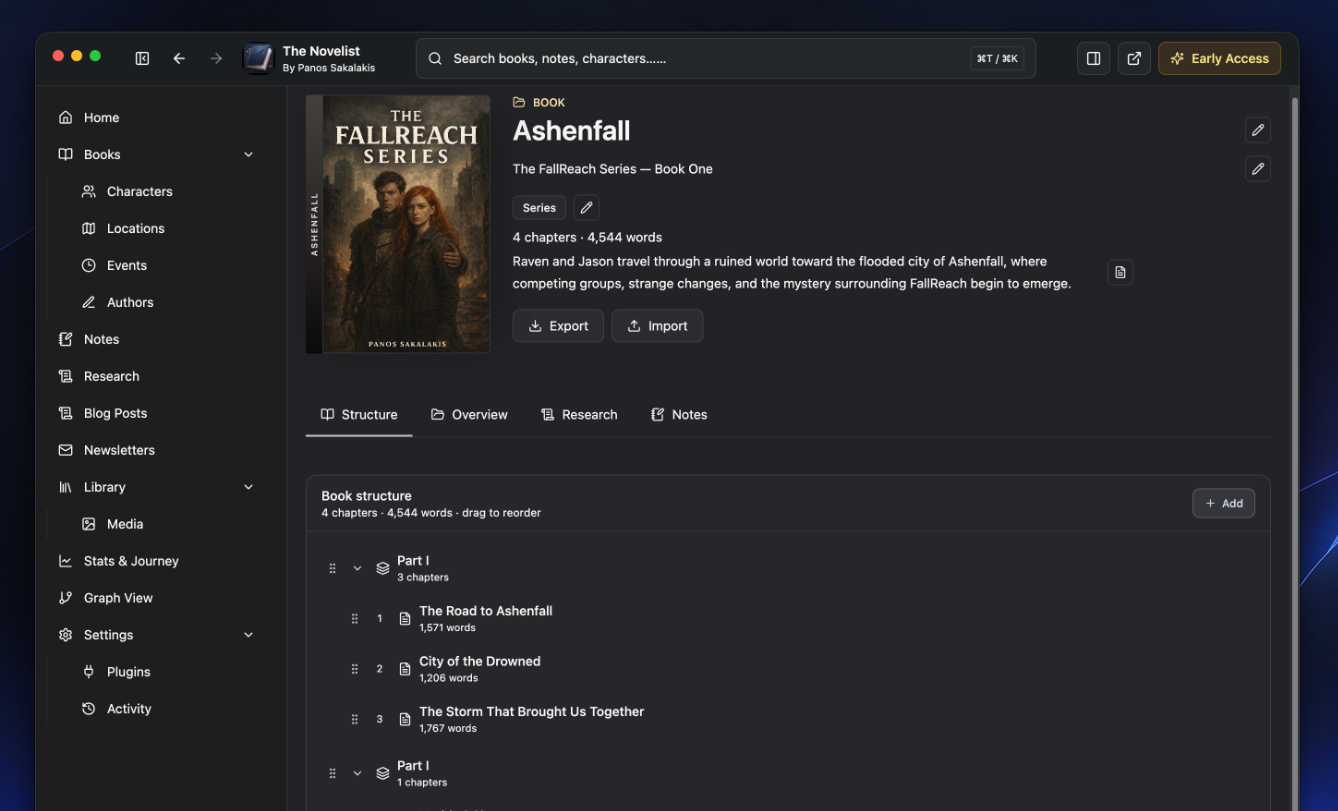
The Novelist is a newly created writing and worldbuilding software for Windows and macOS (with Linux support being in development). It allows you to create multiple different Workspaces for each of your books, or even have one for all of your books. Prefer a single Workspace for huge fiction books that have hundreds or thousands of characters and locations, and worldbuilding, and one for the smaller ones.
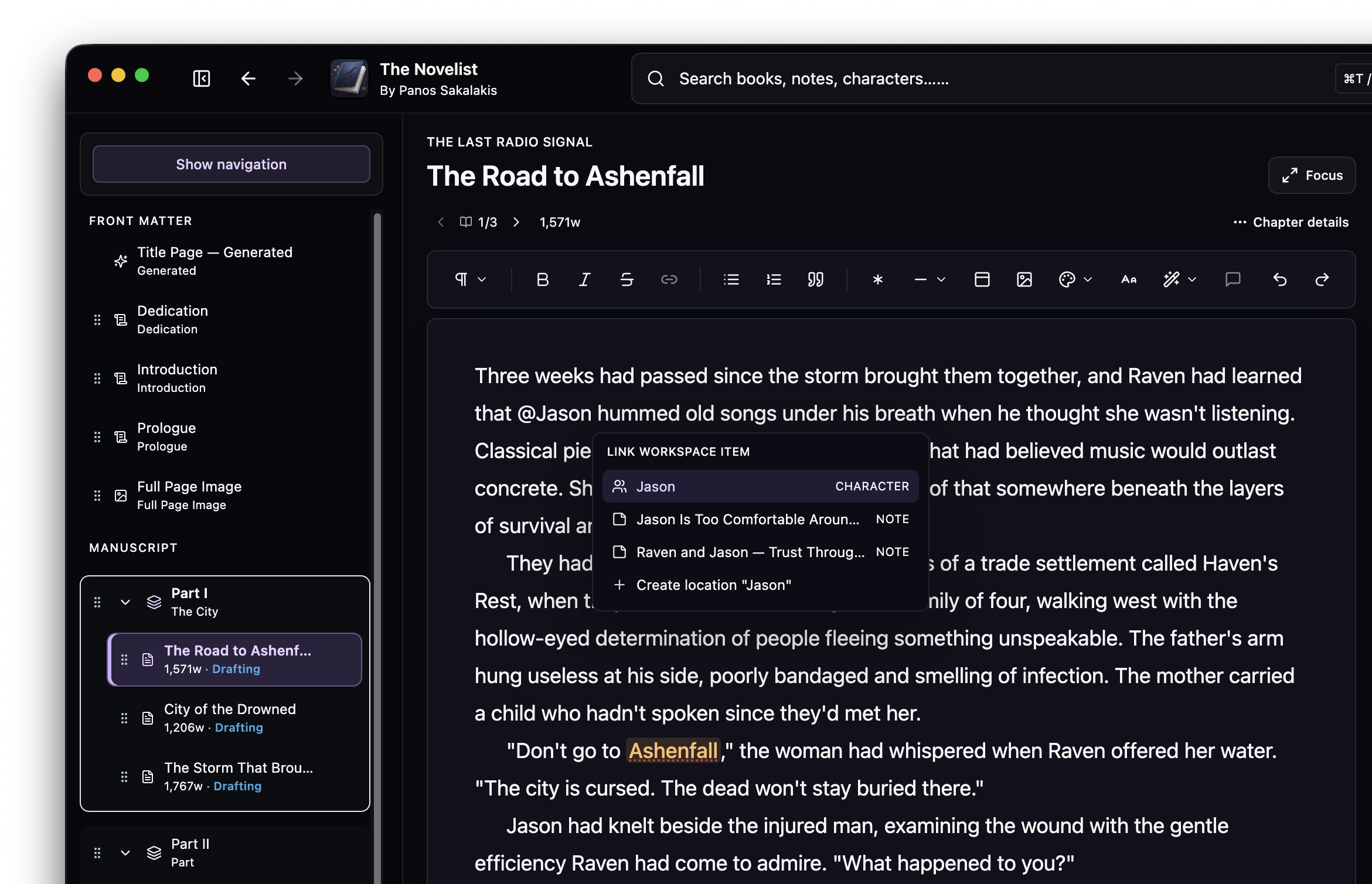
You can create unlimited characters, locations, events, organizations, and secrets that you can connect with each other. There is a Graph View that shows you how exactly everything is connected together, and linking documents or characters or locations or whatever you choose to link can also be done straight from the Text Editor, just by typing @.
While the overall interface has been designed with novel writers in mind, you can actually use it for tons of other books. Whether you’re writing romance, horror, mystery, or any other type of book, you probably need a place to organize your characters, locations, events, and other important information that, otherwise, you’d typically need multiple apps to make it work.
Lastly, the Free version allows you to quickly export your books in .docx or .md format, so you can import them into formatting apps like Atticus, Vellum, etc. Keep in mind that The Novelist already offers many exporting and formatting options, but they’re still in Early Access and not as powerful as other alternatives offer.
Version Comparison: Free vs. Pro
At the time of writing, the Pro plan is €39.99 per year, billed annually. That’s roughly €3.33 per month, although it is not billed monthly.
Here’s the difference between the two versions:
| Features | Free | Pro |
|---|---|---|
| Books, Parts, Chapters and manuscript editor | ✅ | ✅ |
| Story Bible | ✅ | ✅ |
| Characters, Locations, Events, Organizations and Secrets | ✅ | ✅ |
| Notes and Comments | ✅ | ✅ |
| Book Previewer | ✅ | ✅ |
| Find Missing Connections | ✅ | ✅ |
| Basic writing statistics | ✅ | ✅ |
| Style Analyzer and local pacing tools | ✅ | ✅ |
| Base themes | ✅ | ✅ |
| DOCX export | ✅ | ✅ |
| Markdown export | ✅ | ✅ |
| Journey progress recorded in background | ✅ | ✅ |
| Full Stats & Author’s Journey interface | ❌ | ✅ |
| Earned/unlockable themes | ❌ | ✅ |
| Graph View | ❌ | ✅ |
| EPUB export | ❌ | ✅ |
| PDF export | ❌ | ✅ |
| HTML export | ❌ | ✅ |
| Grammar & Clarity | ❌ | ✅ |
| AI Assistant and generation | ❌ | ✅ |
| AI Manuscript Analysis | ❌ | ✅ |
| Ollama and LM Studio AI generation | ❌ | ✅ |
| Cloud AI providers | ❌ | ✅ |
Someone who simply wants to write a novel, organize the Story Bible, maintain Notes, preview the manuscript and export it to Word or Markdown can stay on Free. Pro becomes more relevant when Graph View, deeper statistics, additional export formats, and AI functionality become important.
The good news? You can use the Free version first, and if you like it and you want to unlock even more features and gain access to the Early Access features and options, you can buy and enable the Pro version. The greater news? You won’t lose any of your work if you decide to not renew the Pro version.
Downloading and installing The Novelist
Currently, The Novelist is only available for Windows 10/11 (64-bit) and macOS Apple Silicon (M1, M2, M3, M4, M5, and M5) devices. Support for Intel-based macOS devices will arrive shortly, while a Linux version is already in the works.
Download
The Free version of The Novelist is available both on the official website and through Gumroad, but the Pro version (along with the Free) is only available on Gumroad.
Installing The Novelist
The Novelist is currently in Early Access and is not yet digitally signed on Windows or notarized on macOS. Because of this, your browser or operating system may warn you before downloading or opening the app.
These warnings do not automatically mean the app is malicious. Windows SmartScreen, for example, also warns about downloads that do not yet have an established reputation. Microsoft Learn
Windows 10 / 11
Download the Windows installer.
If Microsoft Edge blocks or warns about the download:
- Open Edge’s Downloads panel.
- Click the three dots (
…) next to The Novelist. - Select Keep.
- If another warning appears, choose Show more and then Keep anyway. Microsoft documents this as the normal override path for a download you trust. Microsoft Learn
Once the .exe has downloaded, open it.
Windows may then display a Microsoft Defender SmartScreen warning because the installer is currently unsigned. If you downloaded The Novelist directly from the official website and want to continue:
- Click More info.
- Click Run anyway.
- Continue through the installer normally.
You do not need to disable Microsoft Defender or SmartScreen globally.
macOS — Apple Silicon
- Download the
.dmgfile and open it. - Drag The Novelist into your Applications folder if prompted, then try opening it normally.
Because the current Early Access build is not notarized with an Apple Developer ID, macOS may refuse to open it the first time.
If that happens:
- Try opening The Novelist once so macOS registers the blocked launch.
- Open System Settings.
- Go to Privacy & Security.
- Scroll down to the Security section.
- Find the message saying The Novelist was blocked.
- Click Open Anyway.
- Confirm by clicking Open and, if requested, enter your Mac password.
Apple documents this as the way to make an exception for a trusted app that has not been notarized. Once approved, macOS remembers the exception and you can normally open The Novelist afterward like any other application (Apple Support).
Updates
On Windows, The Novelist supports automatic updates.
On macOS Early Access, updates are currently installed manually: download the newest .dmg from the official website and replace the previous version. Your books and workspace data are stored separately from the application itself, so replacing the app does not normally remove your projects.
Creating our first book and chapter
The moment that The Novelist is launched for the first time, its installation process will take you step by step into creating your first book and giving it a title. Fill in a title and add a description, both of which you can change later.
The Novelist will then offer you the option to either explore its interface or create your first chapter. Click on “Create first chapter“.
This will take you to the app’s Text Editor (known as “Writing Mode”), from where you can create chapters and organize them in parts, create and edit front and back matter pages, and, most importantly, write the book.
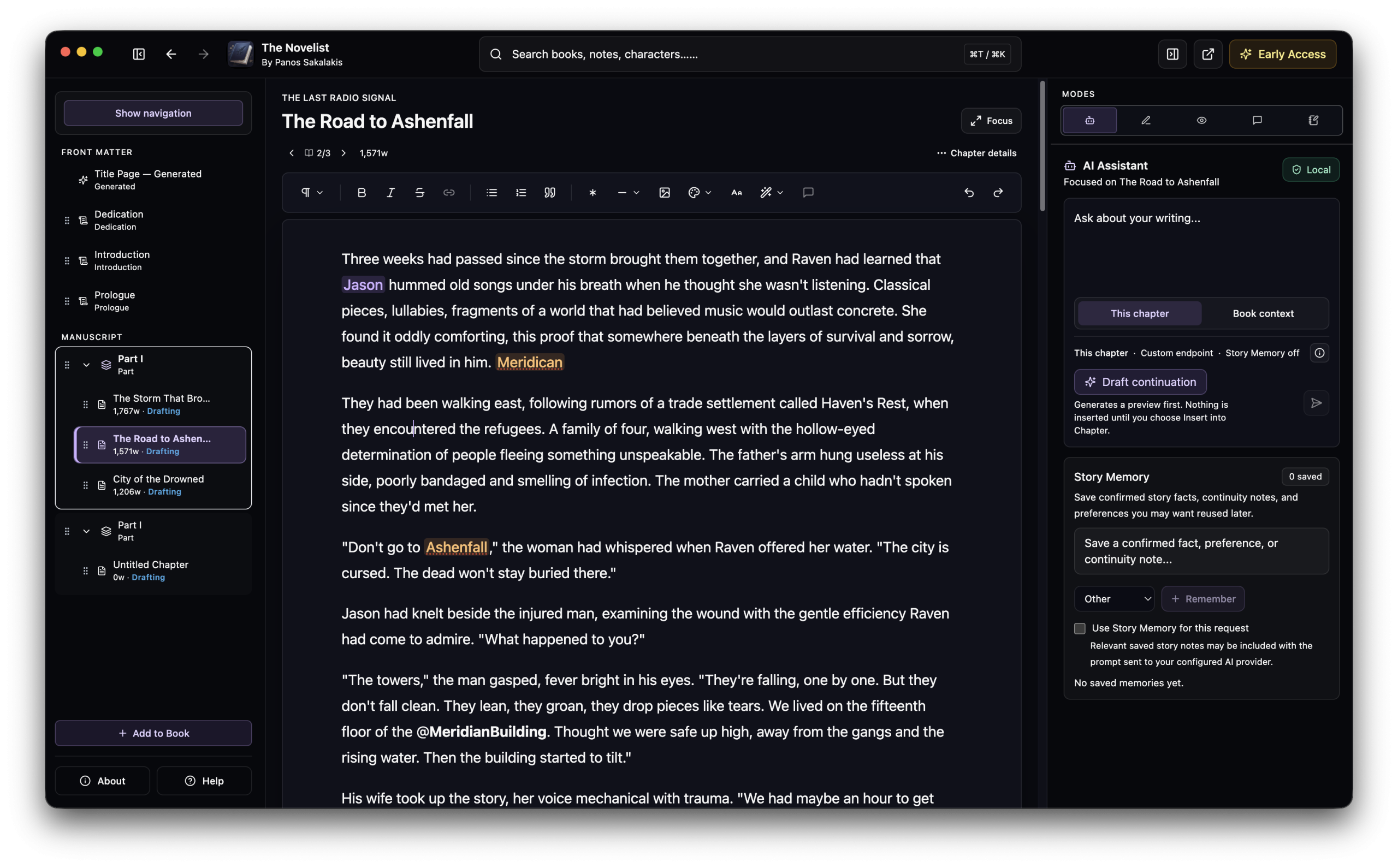
You can quickly add new Parts, Chapters, and front and back Matter Pages just by clicking on the “+ Add to Book” button that’s located on the bottom-left navigation. You can also drag and drop any of the options, making it easier to quickly change the position of a Chapter or a Part.
On the right navigation is where most of the magic appears. You can use the AI Assistant (which you can connect with a cloud-based or locally based LLM), check your book’s or current chapter’s statistics, see how your book will look in print, and/or access your comments and notes.
You can easily disable every individual option that is found on the right navigation of the app. So if you don’t like using the AI Assistant, for example, there’s no reason for it to exist anywhere in your interface – and the same applies to every other option located there.
To disable or enable each option, just go to Settings → Editor, and you’ll find the list of options there.
Creating and linking characters, locations, events, and more
Every single thing that you create within The Novelist can be easily connected to other parts of your story, whether they’re characters, locations, events, secrets, organizations, notes, blog posts, newsletters, etc. When you do proper linking, you can see how all of your connections look through the Graph View (more on that in a bit), which also helps authors and worldbuilders to find missing connections they may have.
Characters
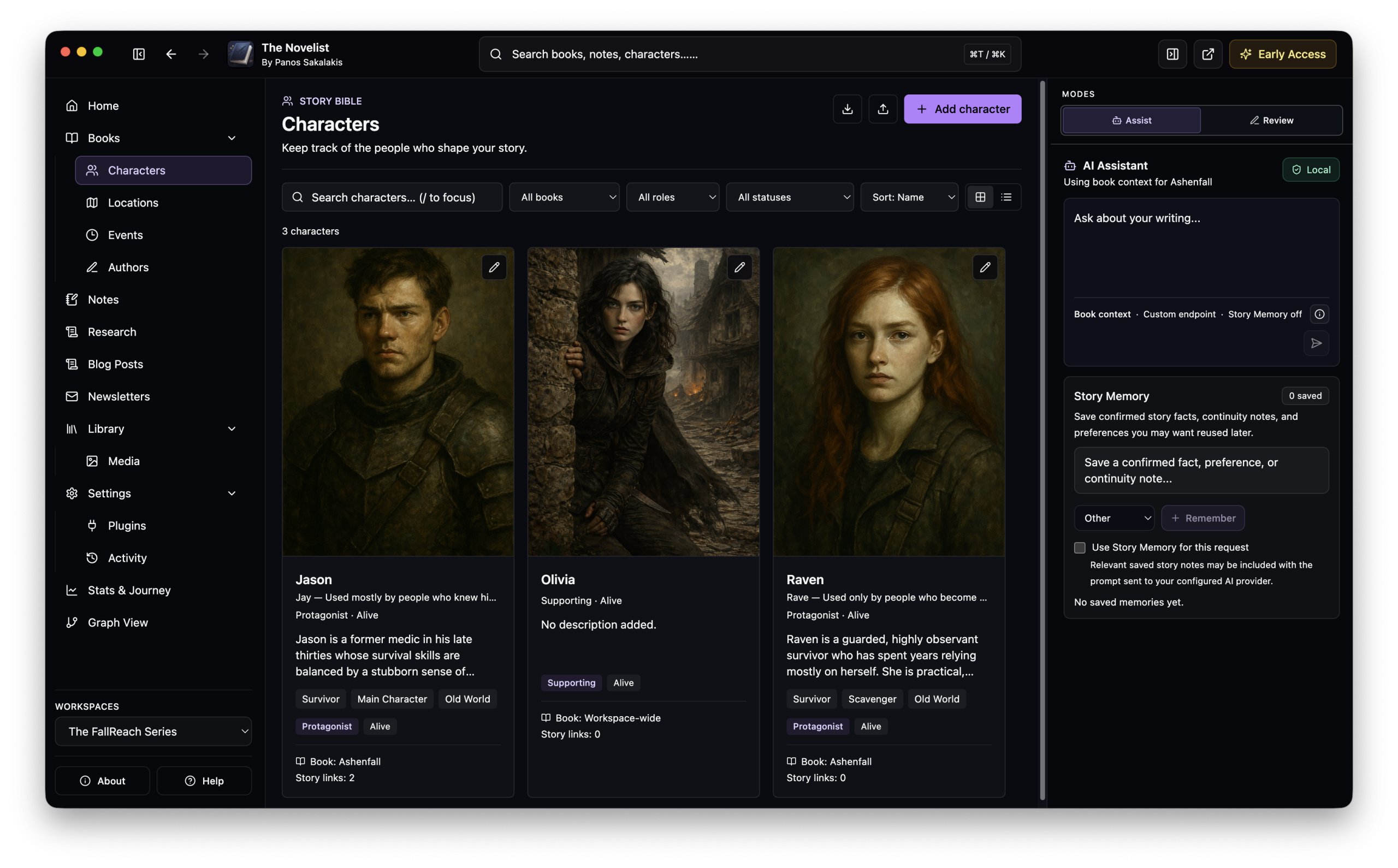
You can create your first character by going to the ‘Characters‘ section from the left navigation. For now, you can explore all your characters using the search bar, the available filters (sorting by book, role, or status), and even the Grid and List views.
You can also create new characters (and locations) straight from within the Text Editor and as you write your book. Just type the @ symbol and start typing your character’s name. If you already created the character, just select the right one; otherwise, you can quickly create a new one without leaving the page.
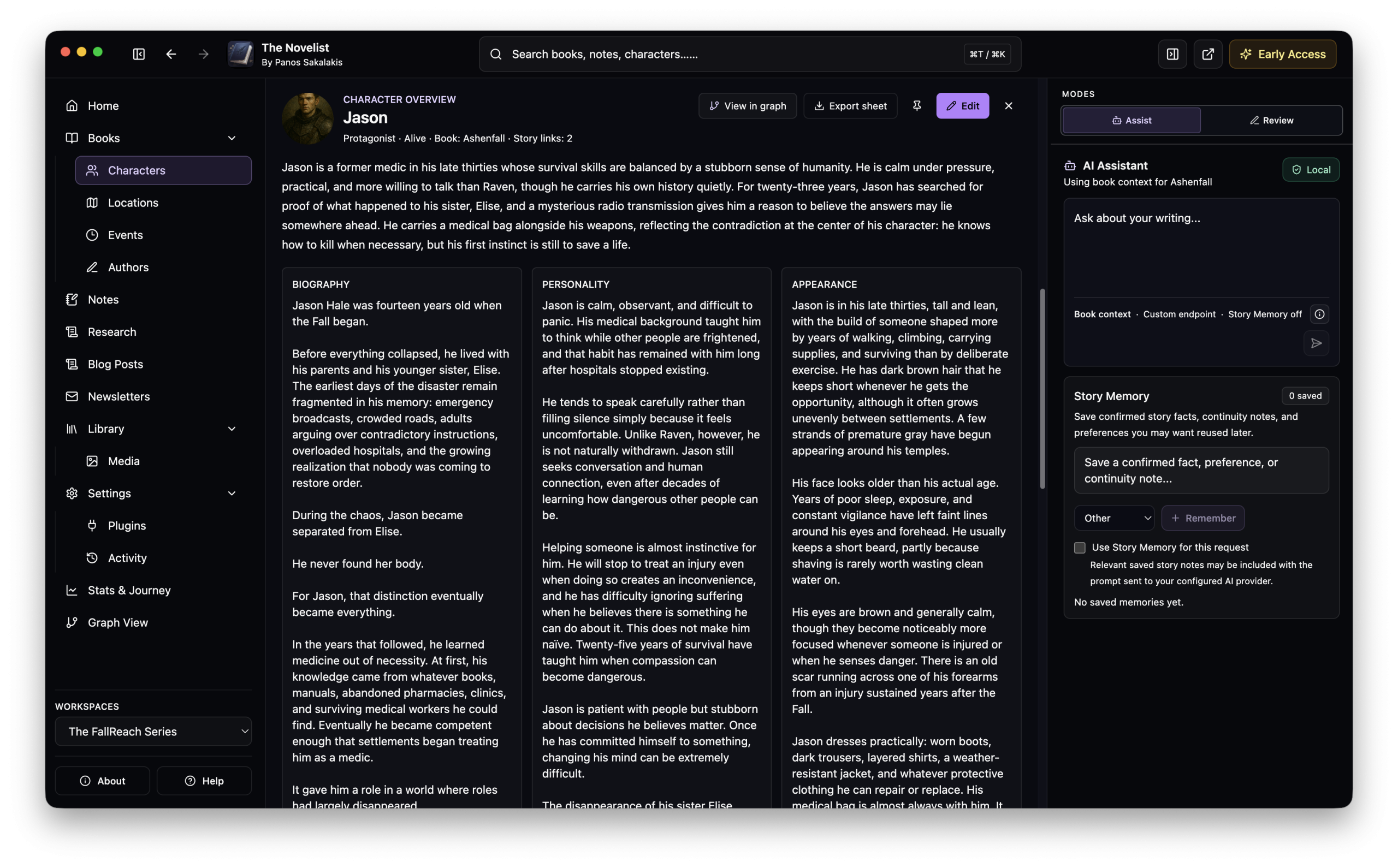
Each time you click on a character, all their information will be available just below. For now, you can include a name, alias and nicknames, role (protagonist, antagonist, supporting, love interest, mentor, etc.), status (alive, dead, missing, etc.), choose which book they appear in; a preferred color, and fill in all the necessary information, including the biography, description, personality, appearance, goals, fears, and more.
When you’re writing a book, just click on any character’s name, and their information will appear in the right navigation.
Locations
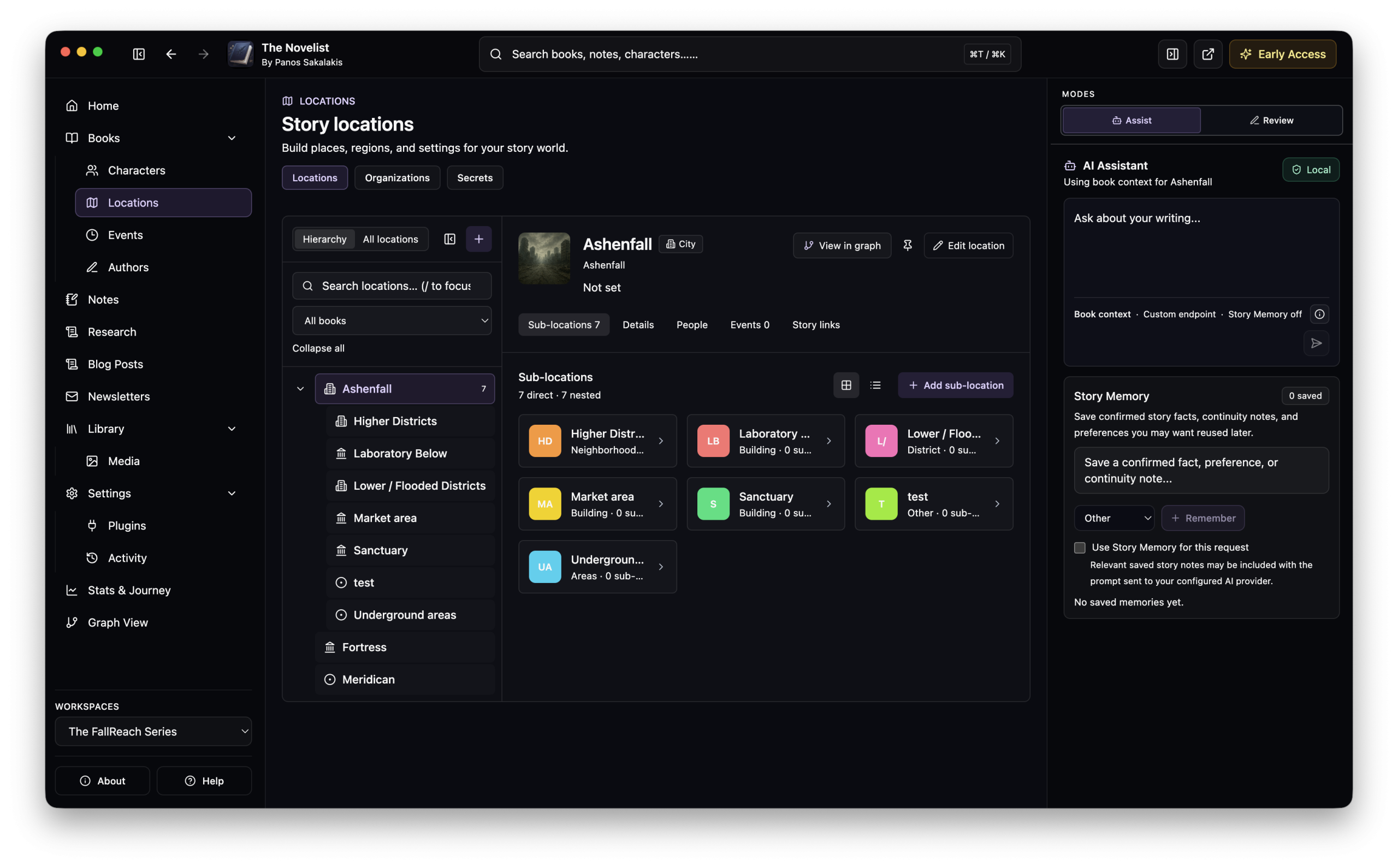
Creating and linking locations in The Novelist is as easy as we just saw with characters. To create, edit, link, and manage your locations, just go to the ‘Locations’ section from the left sidebar. To create a new one while writing, just type the symbol @ and start typing your location’s name.
When creating a new location, there are two options that you can choose from: ‘Parent’ and ‘Sub-location’. Think of parent locations as your galaxies, planets, or countries – whatever may include sub-locations. For example, if you add ‘Greece’ as a country, then its sub-locations may include cities like Athens, Thessaloniki, and Kilkis. These cities may also have their own sub-locations, like villages, districts, buildings, landmarks, and the list goes on.
For each location, you can also fill in its important information, including name, type (galaxy, star system, planet, country, etc.), a parent location (if it has one), the book it connects to, aliases, tags, description, atmosphere, rules, and a color. You can also create and add more custom fields.
Organizations
Organizations live inside your Locations section, and they allow you to add a few more things of your story that don’t have another place. For example, I’ve been using them to add some of the bad corporations that my story has, along with different factions that my world has. This one will be greatly improved with the upcoming app’s updates, but for now, it’s a good place to add and link whatever you don’t feel like adding elsewhere.
Secrets
This one also lives inside your Locations section, and as the name suggests, if your story has any huge secrets, like a character dying in the end, a city being destroyed, or because Bob decided to kill John because he owed him – or whatever – this is the place to add those secrets, link them if you like, and keep them there until it’s time to properly use them.
Events
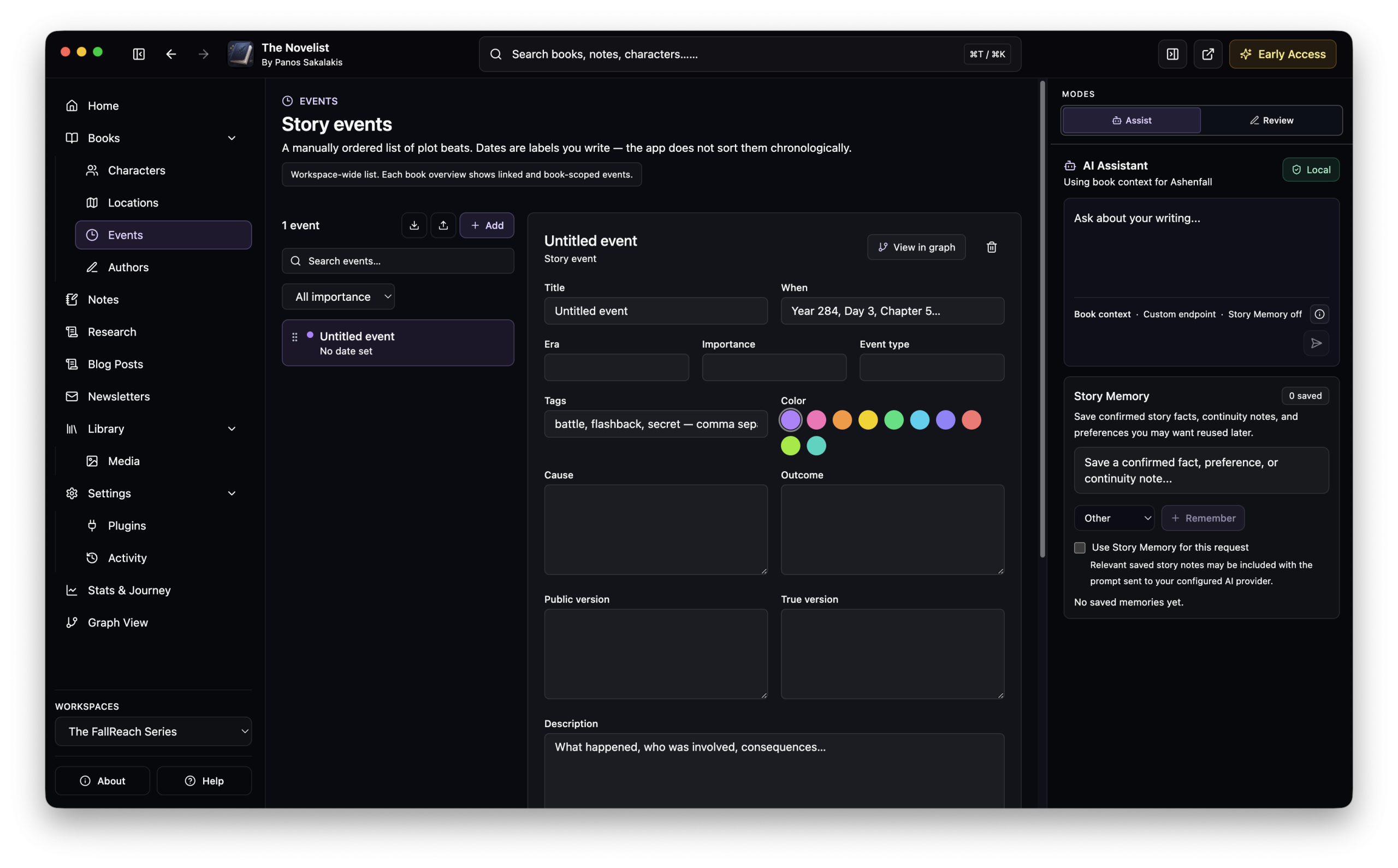
Every story has its own events. Some books may include a bunch of events, while others may have from a few hundred to thousands of different ones that take place in different periods and chapters. Having one single place to organize them all, properly link them to each part of your story, and then being able to quickly see and edit them is absolutely crucial for many authors.
The Novelist offers the ‘Events’ section, and like characters and locations that we saw earlier, you can create new events by giving them a name, a date when they occur, era, importance, type, cause, outcome, public version and true version, description, along with tags and a color of your choice.
Each event can be connected to a specific book and setting, such as: “This event’s primary setting takes place in the city of Ashenfall.” There’s also no limit on the number of events you can create and connect, so go ahead and give it everything to stay as organized as possible and never miss one again.
Authors
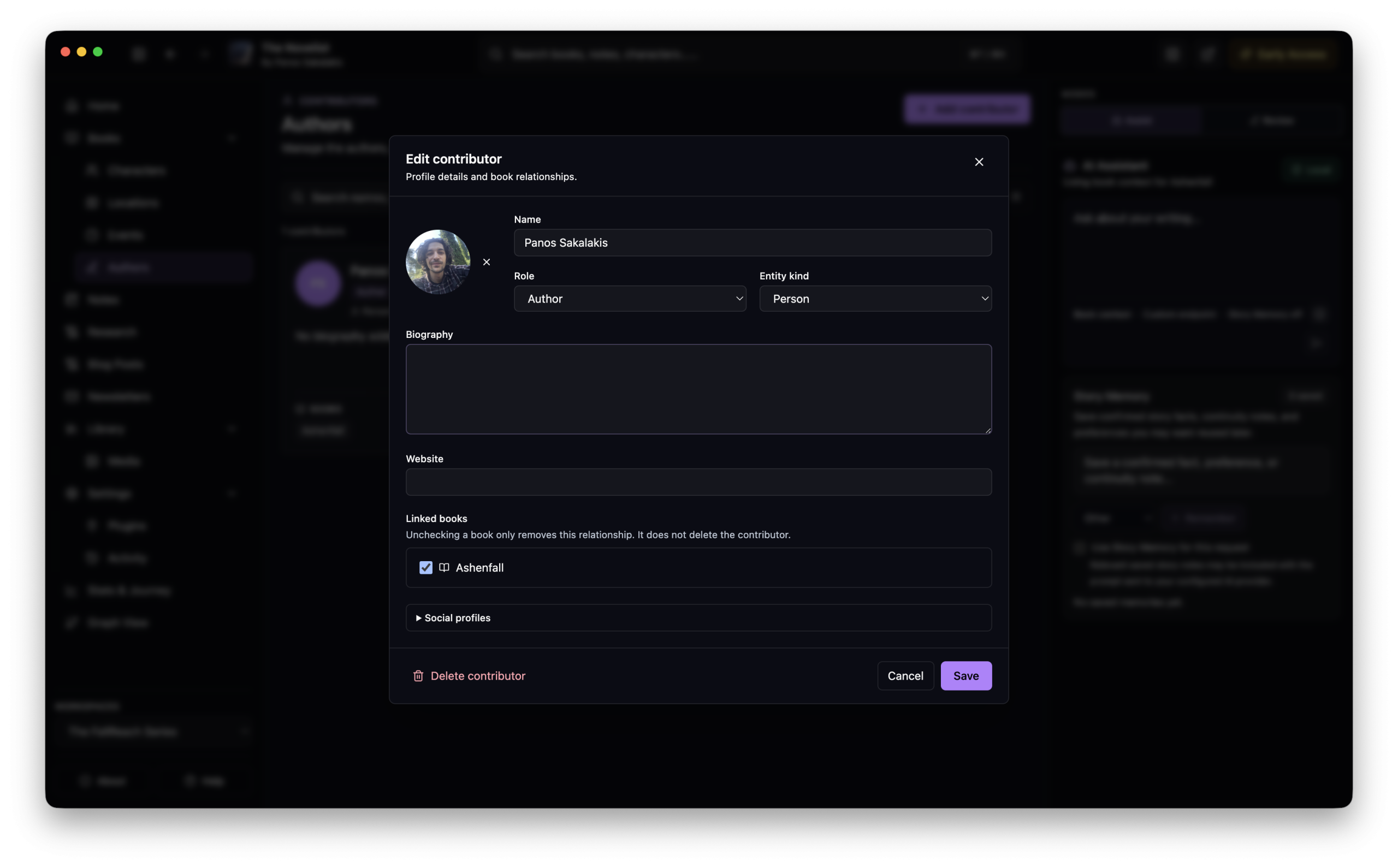
In the ‘Authors’ section, you start by adding yourself as the author. You can choose the books you want to connect your name with, along with a biography, website, and social media links. If you want to add more people, there are available roles that you can choose from, including author, co-author, editor, publisher, proofreader, translator, illustrator, cover designer, agent, and more.
Research, notes, and comments
Well, I don’t know many authors who don’t have hundreds upon hundreds of notes and comments that are absolutely needed for their stories. Some people prefer using Google Docs because it allows them to select a word, sentence, or a paragraph and comment on it.
Others use third-party apps such as Google Keep or Todoist to keep even more notes, and some went as far as setting up Obsidian for that exact reason – and don’t get me started about saving and organizing all that research.
Since The Novelist tries to keep you in the same interface without having to switch to another app, it offers all of that, and even more.
Comments
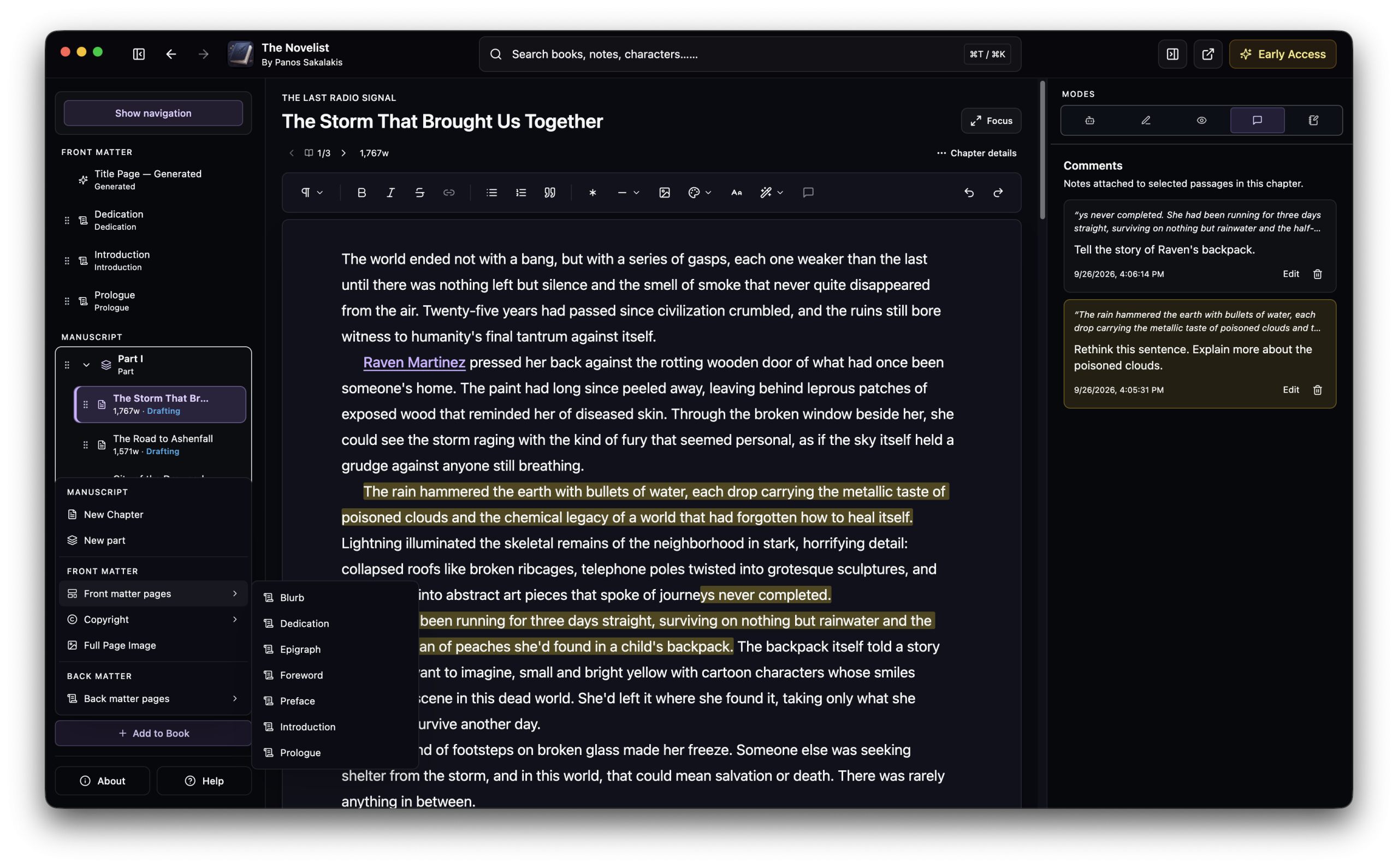
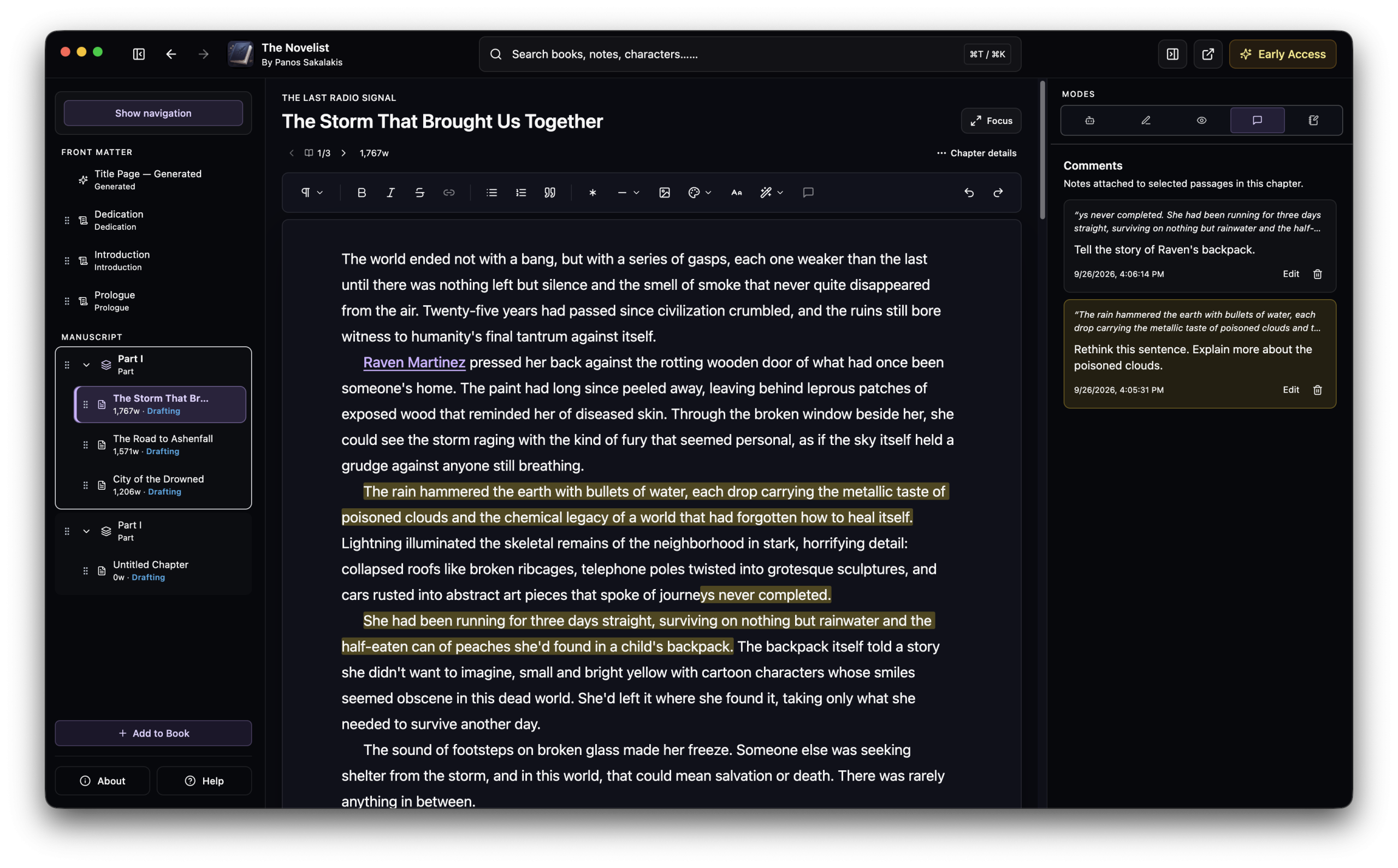
When you’re writing a chapter, just select a letter, a word, a sentence, or a full paragraph, and then click on the “Comment” option and start typing your comment. All comments have a colorful background so you can easily find them, and they’re all available in the right sidebar – and if you click into any of them, it will take you straight to them.
As of this moment of writing, there isn’t a specific section to see or add all your comments. Instead, all the comments are located inside the Text Editor for each of your books, and each book can have its own individual and unique comments.
Notes
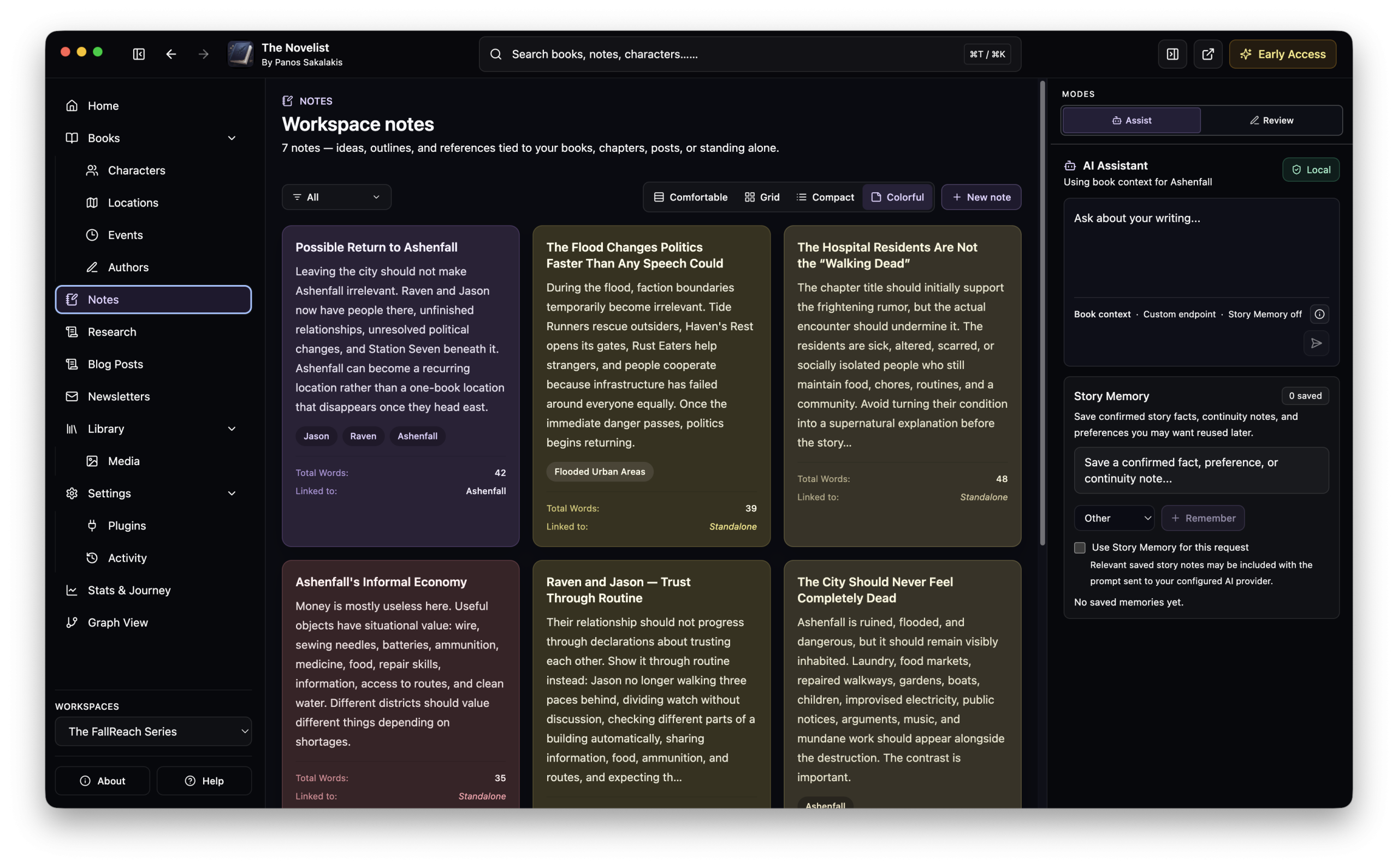
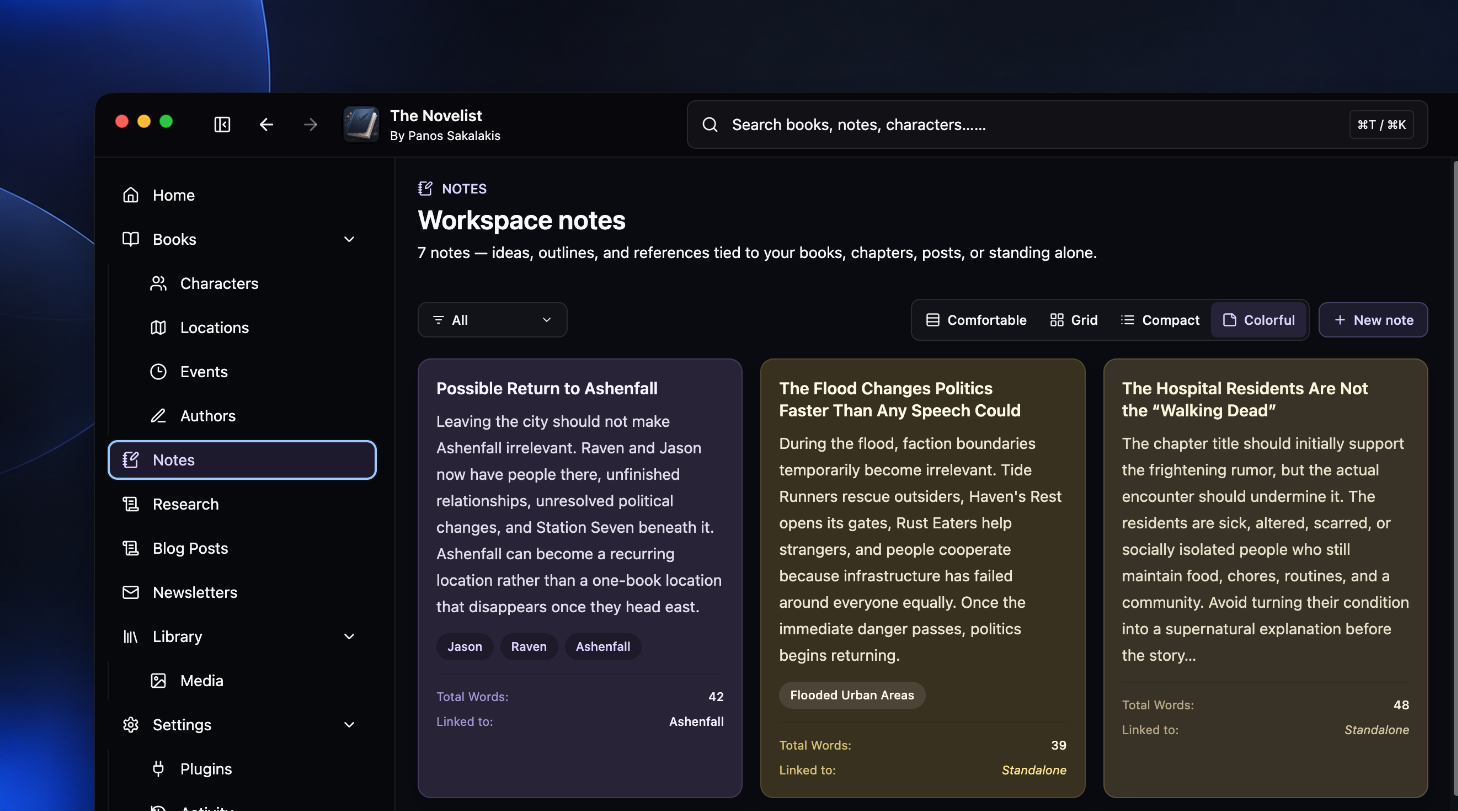
The ‘Notes’ system in The Novelist is arguably one of the best and most useful ones, since you can have an unlimited number of them, and each one can be connected to a specific book or chapter, character, location, event, organization, or secret. You can also filter them and sort them based on books, chapters, posts, etc.
Another cool thing about the note-taking system is that you can have different view styles. Currently, The Novelist offers ‘Comfortable’, ‘Grid’, ‘Compact’, and my personal favorite, ‘Colorful’ style views. You can also organize your notes with tags, and changing their color is as easy as right-clicking on any of them and choosing one of the available colors.
Research
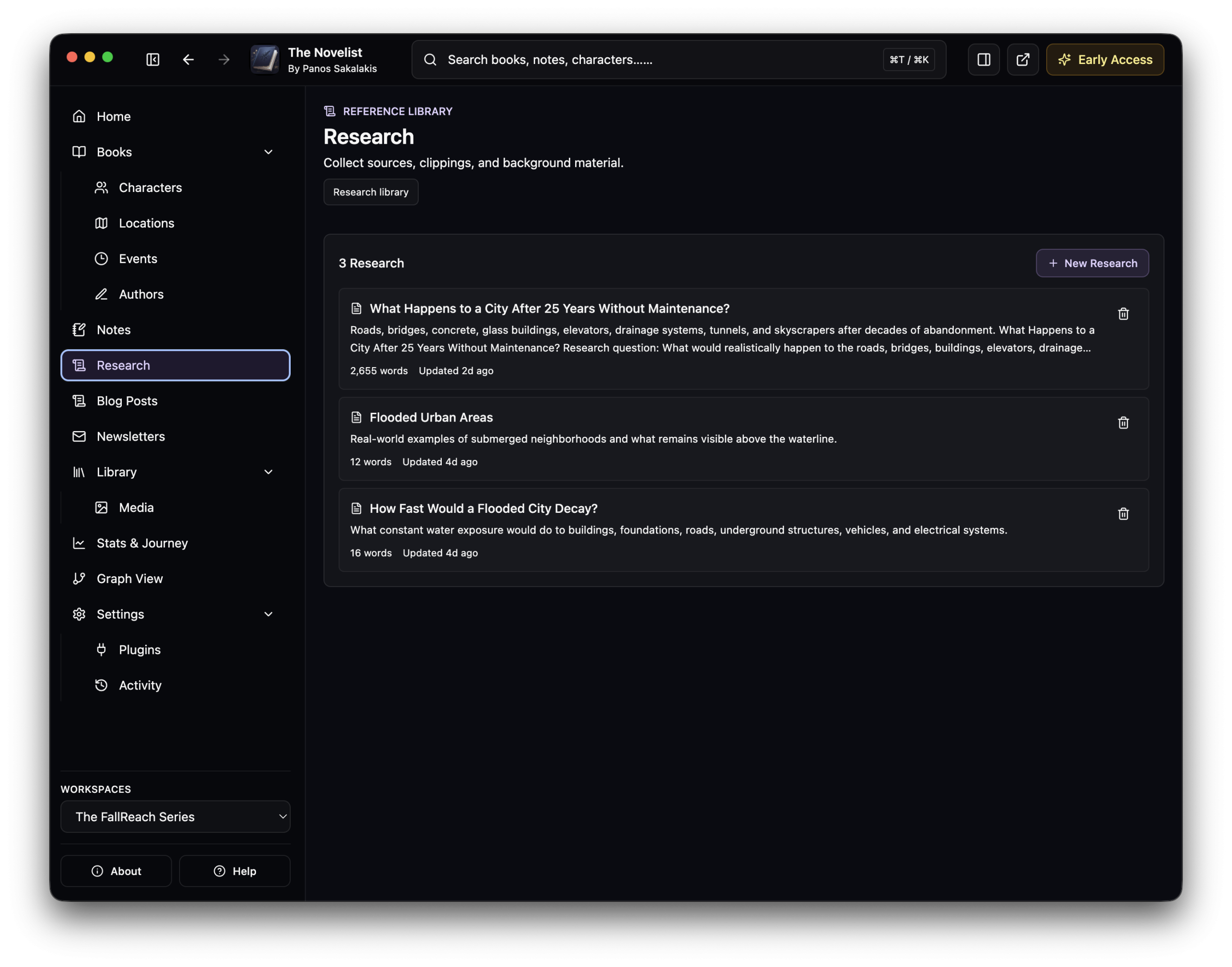
There is some good news and some bad news about the ‘Research’ section in The Novelist. The bad news is that the app doesn’t offer multiple different views right now. The good news is that more view styles are on the app’s roadmap, and that the feature actually exists and is available to use.
Like anything else I’ve mentioned, you can link each research item to a specific book, chapter, event, character, location, organization, or secret, and the app allows you to have an unlimited number of research items saved and connected to other parts.
Blog Posts and Newsletters
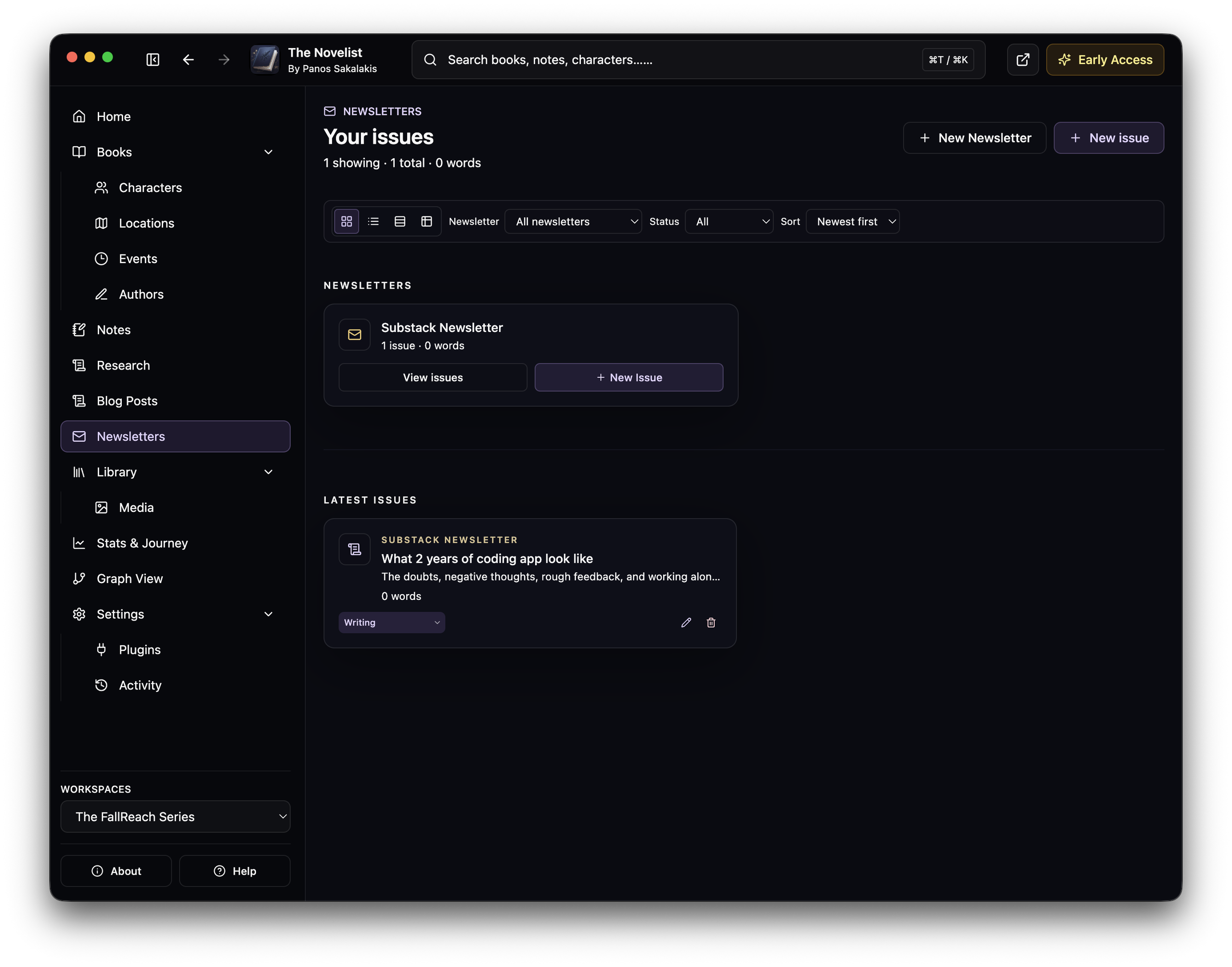
For many authors, ‘Blog Posts‘ and ‘Newsletters‘ are two important features because they may run their own personal blog or newsletter and use it for promoting their books, giving behind-the-scenes sneak peeks, or running their own memberships.
For newsletters, The Novelist offers the option to have ‘Newsletters‘ and ‘Issues‘, where a newsletter may be your Substack, and issues are all the posts that you want to write and later publish.
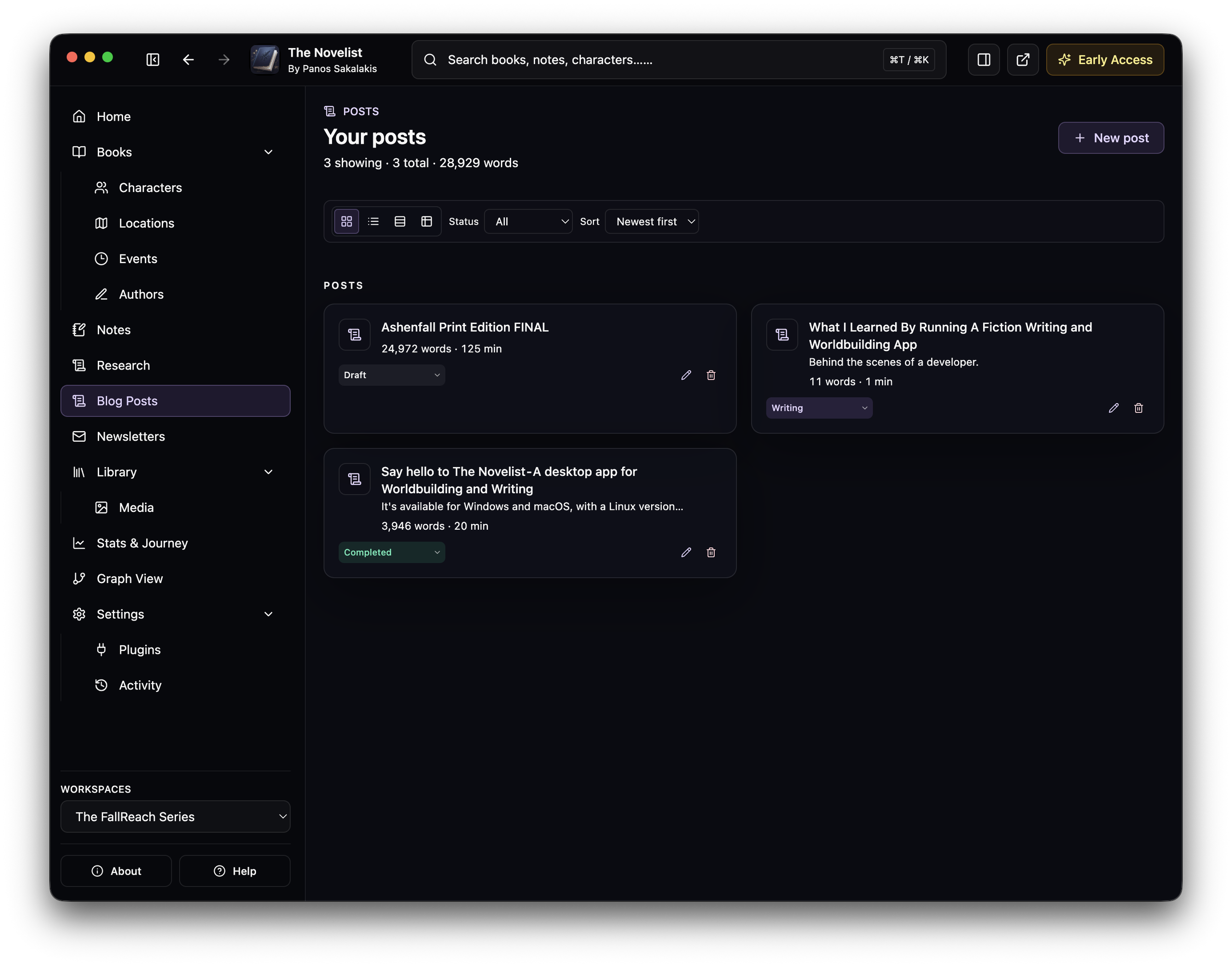
For blog posts, you can organize all of your posts based on each blog that you may own, such as “My Personal Blog“, “Medium Blog“, and the list goes on.
The Graph View
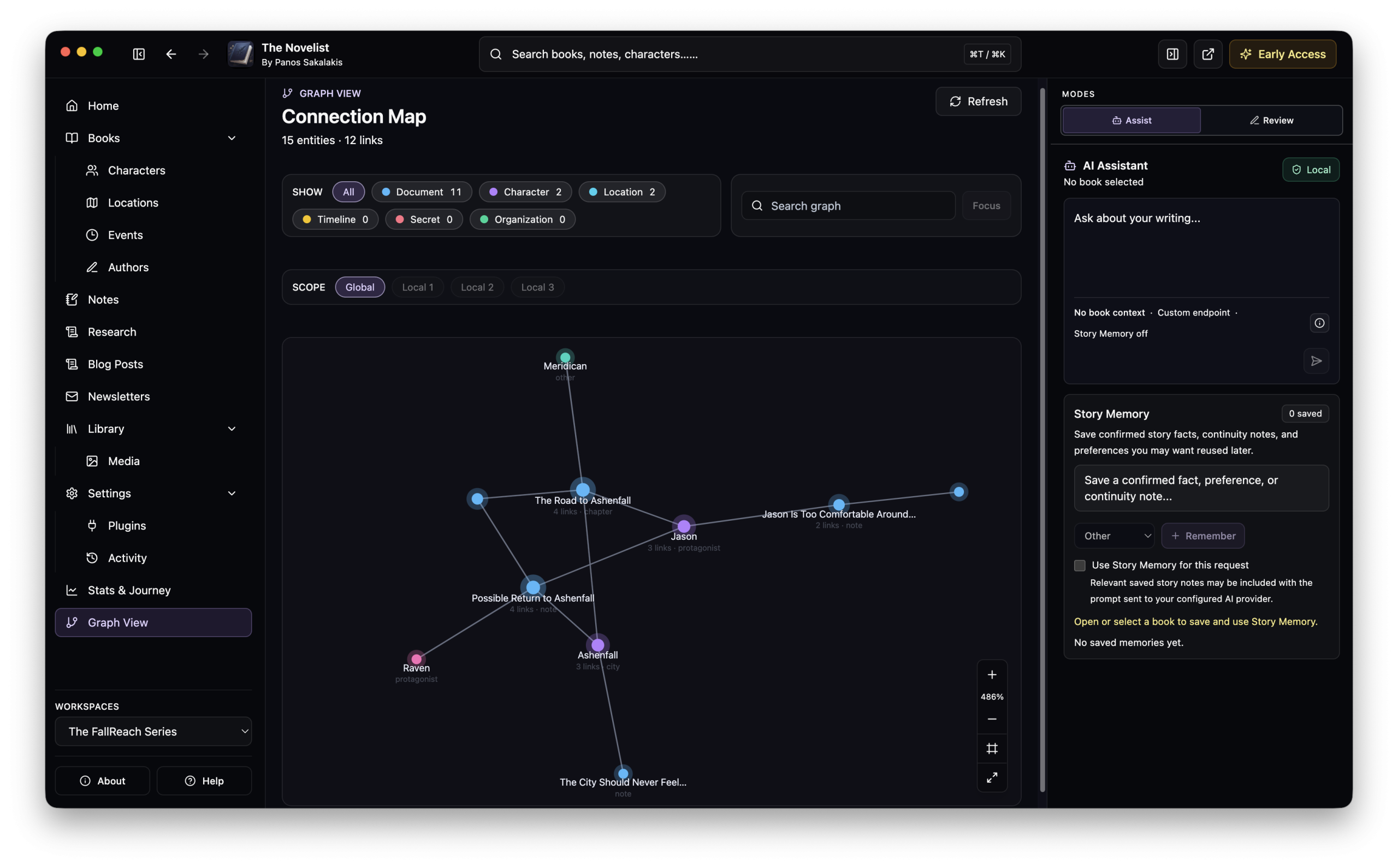
You can think of the ‘Graph View‘ as a great visual way to see how everything is connected to your story, and that includes every single part that The Novelist offers. You can see where the city of Ashenfall is, who’s been there from your characters, if you have any notes connected to it, and more.
As your story progresses and grows, the same happens to your Graph View, and once you reach a point where you have a hundred different characters, locations, events, etc., this is when this feature becomes very useful; it allows you to see if you have any missing connections that you forgot about.
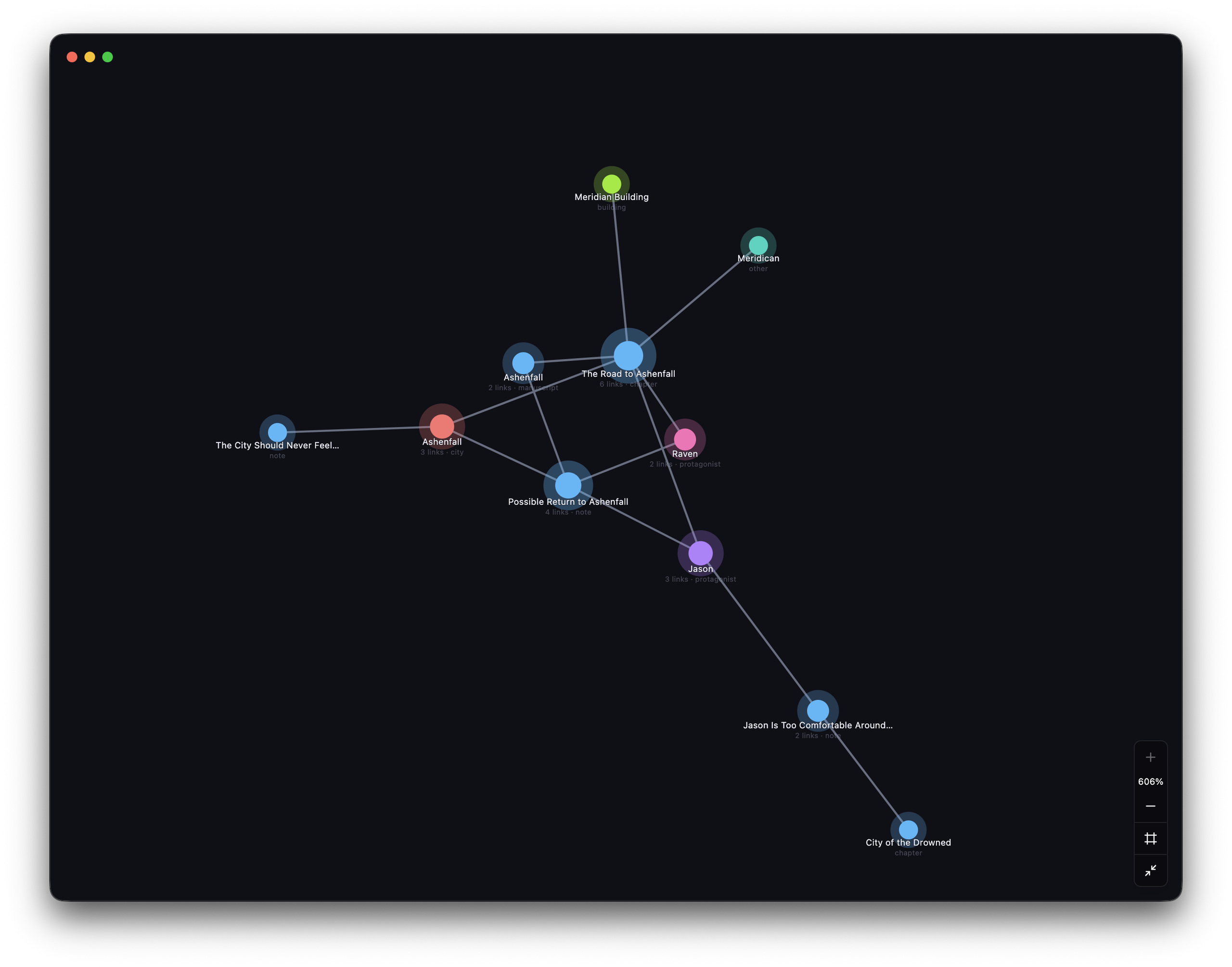
Of course, for the Graph View to work, you’ll have to properly connect everything to each other. Don’t expect the Graph View to show that a character visited the city of Ashenfall and found themselves in the Meridian building where they had a meeting with Raven and Olivia if you never linked them.
Stats and Author’s Journey
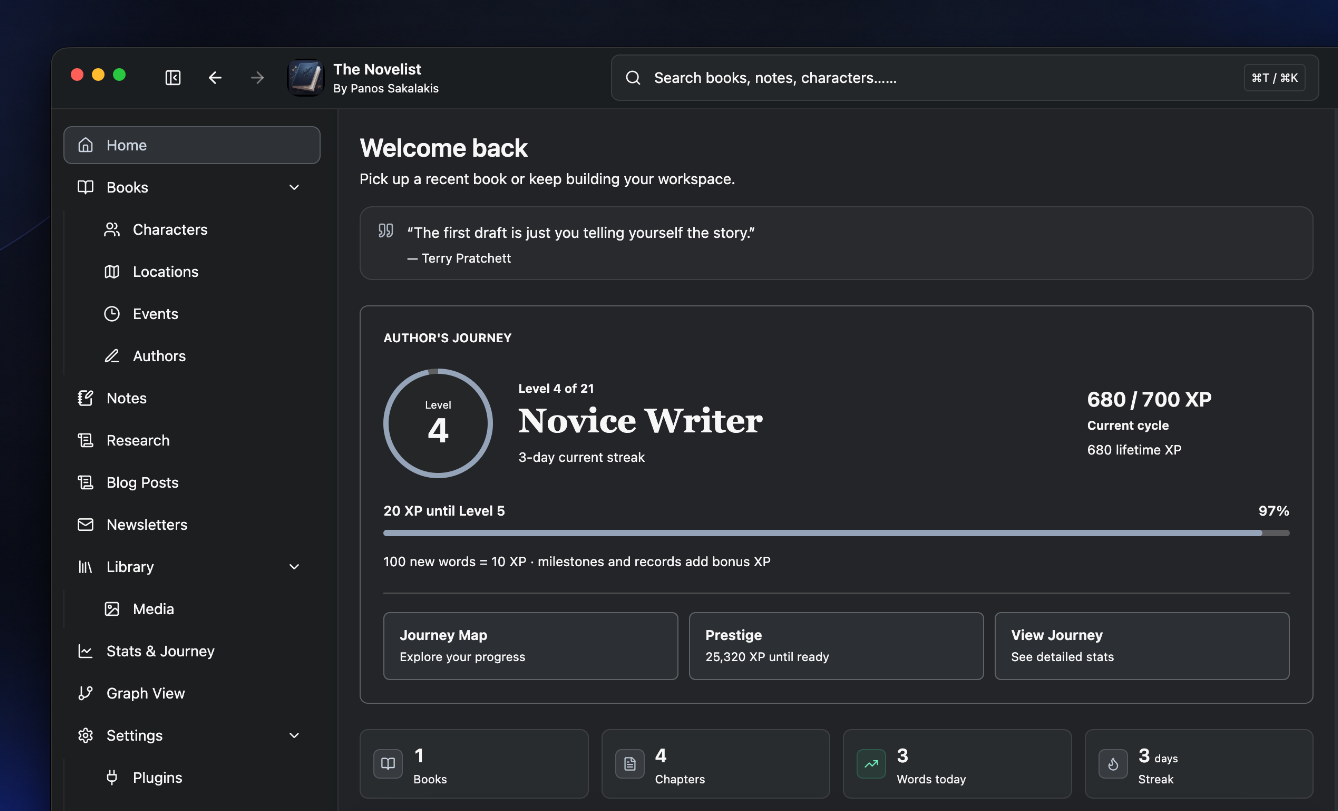
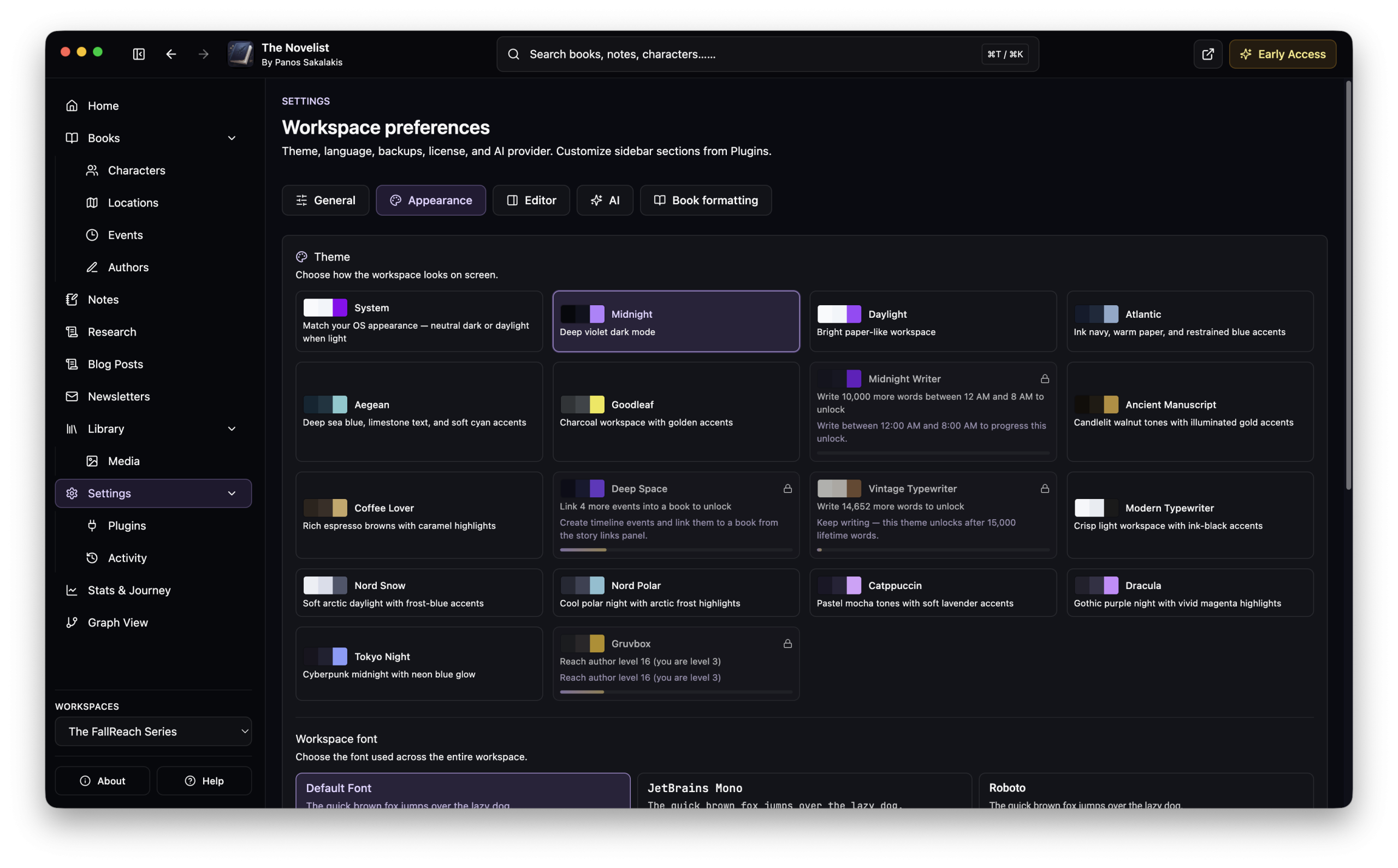
This is probably the fun part of the app: As you write, create new parts and chapters, and new events, the Novelist’s system will start to unlock a few “goodies”, as I like to call them. For example, if you write 15,000 lifetime words, you’ll unlock a new theme.
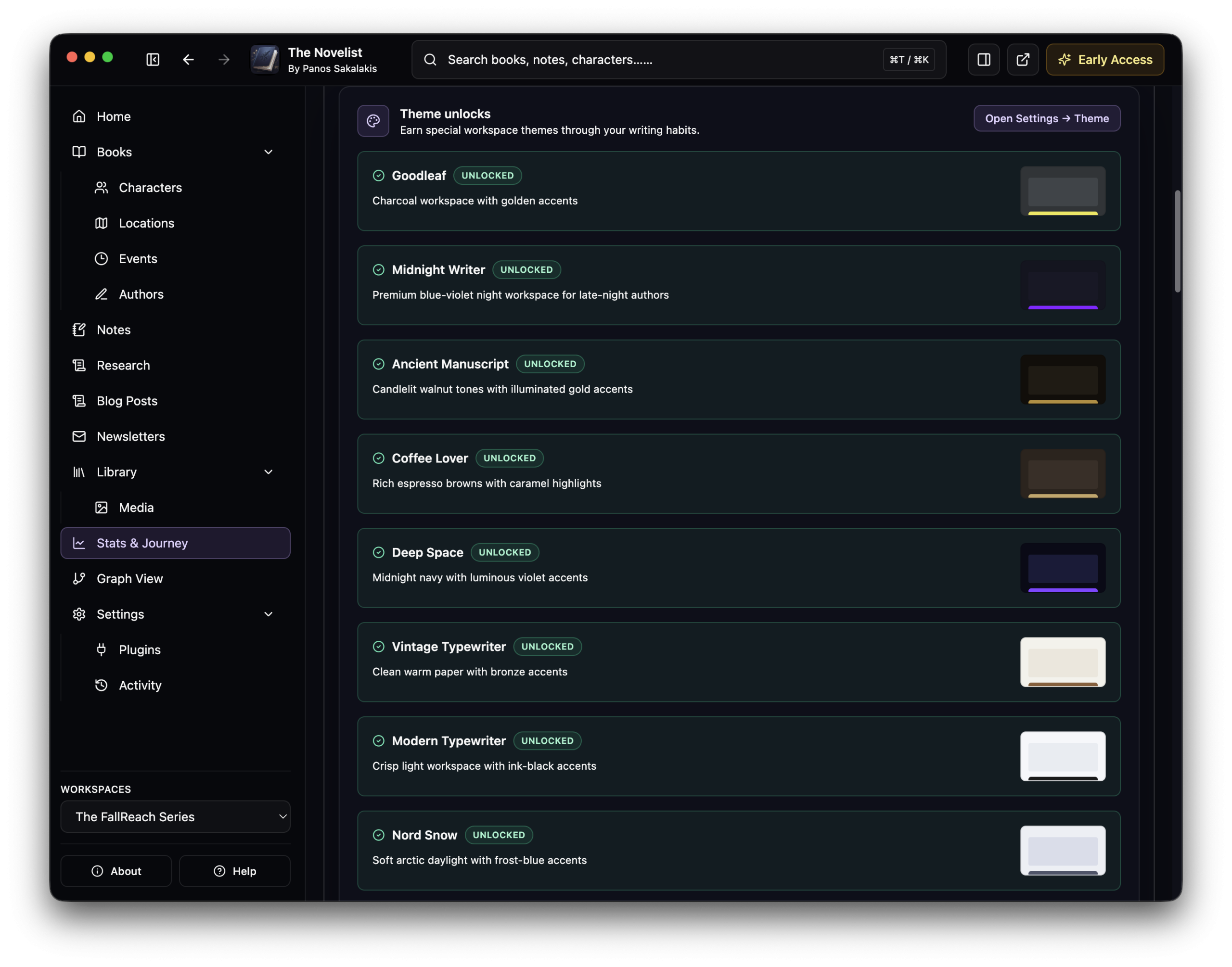
As you progress through your book and story, the more you work on it, the more cool stuff you’ll be unlocking and the more XP you’ll be getting. XP is used for levels, and the higher level you reach, the more things you’ll unlock.
Apart from that, you’ll have tons of different statistics that will help you better understand your progress, including having daily streaks, a calendar with the days you wrote the most, daily goals, milestones, and more. In other words, if you ever got bored with your writing software, you ain’t gonna be bored anytime soon using The Novelist, as the app pushes you to write more, do more, and in the end, turn that idea that you had into a complete book or novel.
AI Assistant and Grammar Checker
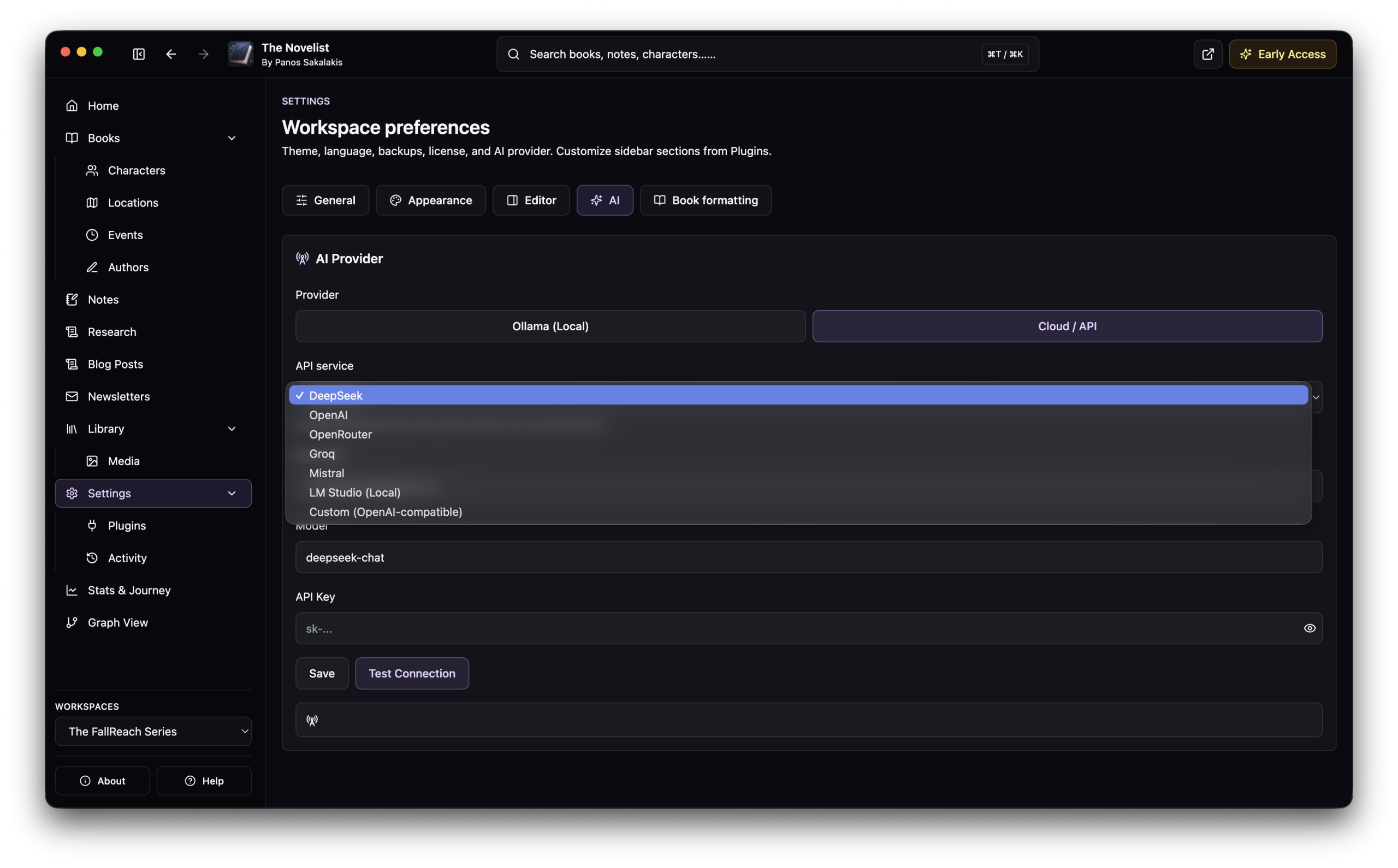
Last but not least, The Novelist gives you the option to enable or completely disable its AI Assistant. If you need it and you want it enabled, you can choose to use its AI Assistant with either a cloud-based LLM like OpenAI’s ChatGPT, DeepSeek, OpenRouter, Groq, and Mistral, or a locally based LLM using Ollama, LM Studio, or any OpenAI custom model.
To make the AI model even smarter for your books, The Novelist has implemented the “Story Memory” feature, which allows you to save confirmed story facts, notes, continuity, and other preferences that you want to be reused later. You can even use its “Draft continuation” option to generate a preview first, while nothing is automatically inserted until you choose to insert it yourself in the chapter you’re writing at.
Other than that, the app offers you the option to check your pacing, grammar, and clarity, and those two features aren’t based on AI, so you can use them even if you completely disable the AI Assistant.
Screenshots (Light Mode)
Since I’ve only included screenshots of how The Novelist looks in dark mode, here’s a screenshot collection with the app in light mode:


There are many other color modes that the app supports, both dark and light modes, so go ahead and choose the one that you like the most.
Overall
Overall, The Novelist tries to bring much of what an author and a worldbuilder may need to take a simple idea and turn it into a complete book or novel. Whether it succeeds or not, that’s based on your own expectations from a worldbuilding and writing software, and personal preferences and needs.
The free version is more than generous, and it doesn’t restrict how many books, chapters, characters, locations, events, notes, and comments you can create and link to each other. The customization options are more than great for an app that’s still in the Early Access phase, offering a total of 19 different themes and 6 fonts, all of which will apply to most of the app’s interface.
Unfortunately, there isn’t a Linux version yet (although it’s in the works), and the app is still not available for Intel-based macOS devices (only for Apple Silicon). Other than that, formatting and exporting your book into a proper format is still not as robust as other alternatives like Vellum or Atticus offer, but yet again, it’s the Early Access version, so for huge improvements we’ll have to wait a bit longer.
Have you ever used The Novelist? And if so, what did you like and hate the most about it? If not, which writing software are you currently using for writing and formatting your books? Let me know in the comments down below.


