


If there’s anything that I love more than changing my wallpapers every now and then to keep things fresh, it’s having an app that does that for me. By using an app to auto-change your wallpapers every few hours, days, or even weeks, you get to see a beautiful, random wallpaper that makes everything shine.
I’ve used so many auto-changing wallpaper apps in the past that I thought it would be a great idea to share the best that I found all of those years. I did a little digging to see if there’s anything new and exciting, and I’ll keep searching from time to time, so expect this article to grow bigger as time passes.
1. Wallper
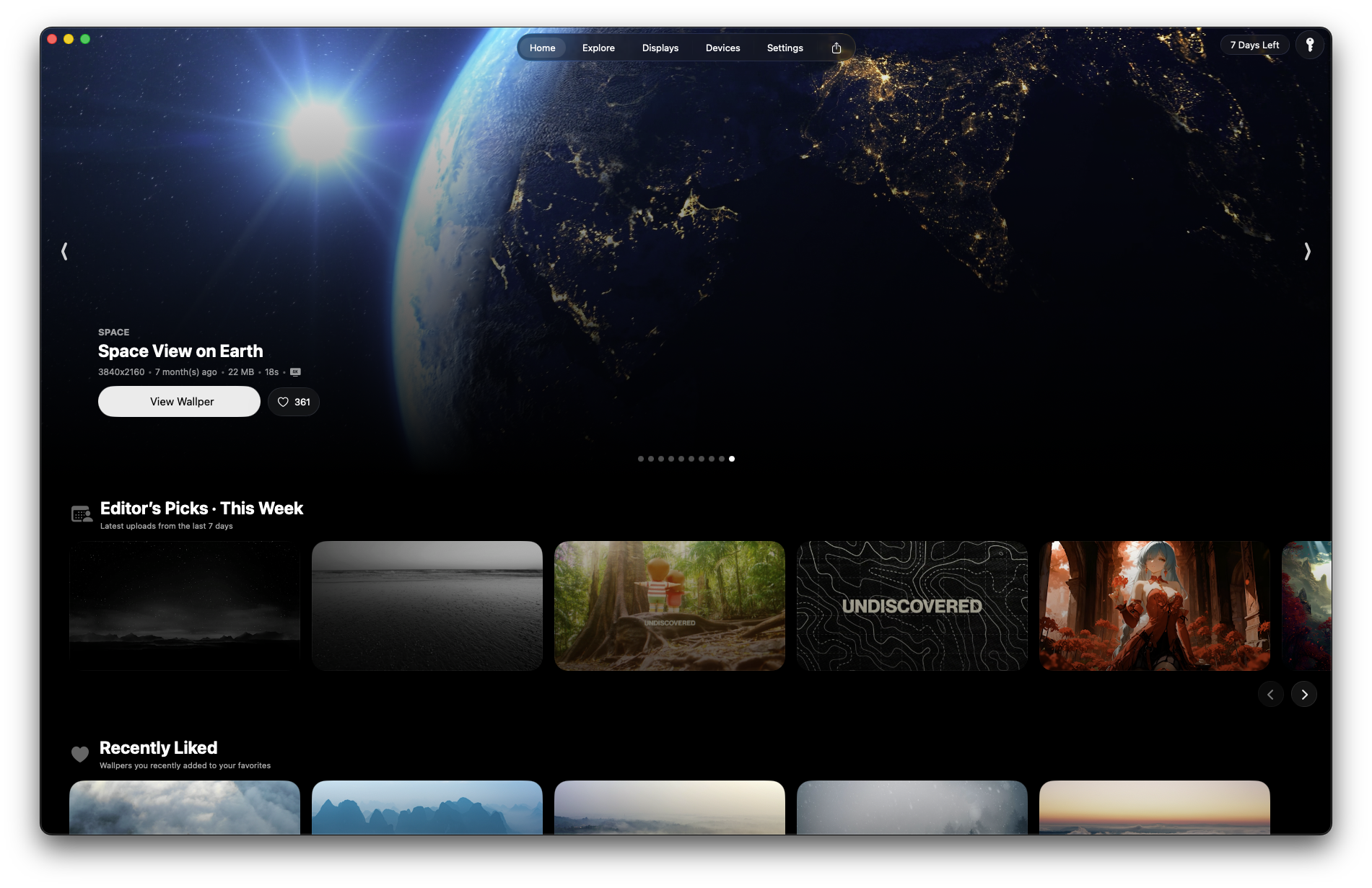
I found this app just at the end of 2025, and I couldn’t be happier sharing it with you. If you love live or animated wallpapers and you own a Mac device, you’re in the right place. Wallper is a premium (that you can use completely free for 7 days) app that comes with a collection of pre-made live wallpapers that you can set with one click, priced at $9.99 as a one-time payment.
Now, while the official “themes” [wallpapers] are only 67, there are over 1,800+ live wallpapers that have been made and published by the app’s community. And yes, you can actually create and share your own theme. You can find anything from absolute cuteness to raining or snowing to watching the Earth spinning or an Anime character doing Anime things.
To keep things a bit organized, Wallper lets you add each live wallpaper to your favorites, and to discover new wallpapers, you can either check out their weekly recommendations or head over to their discovery page to find everything in one place. Just keep in mind that those wallpapers are a bit heavy when it comes to their size, so make sure to delete them if you’re not using them anymore (just go to Wallper’s settings).
Access over 1,800+ live wallpapers that make macOS come to life.
2. Wally Unsplash Wallpapers

Wally Unsplash Wallpapers, as the name suggests, it’s a Windows application that generates random wallpapers using the Unsplash library. It’s one of the easiest to use and most minimal applications for auto-changing wallpapers, it’s completely free, and the only option that you get is when it should (and if it should) automatically change your wallpaper.
With Wally Unsplash Wallpapers, you can set your wallpapers to either change daily or weekly, or to manually change them yourself. To change a wallpaper, the only thing you’ll have to do is click on the “Set As Wallpaper” button, or even the “Set As Lockscreen” button. To generate a new wallpaper, simply click on the refresh icon found in the middle of the app (and the wallpaper picture).
The app also has a history page from which you can find all the preview wallpapers that you’ve used in the past, and you can easily download any wallpaper by clicking on the “Download” option in the bottom right corner. Last but not least, it’s super fast thanks to its minimalistic approach, so don’t worry if you have a slower PC or laptop, as it won’t use much of your resources (if all).
Let it automatically change your wallpapers on Windows, all pulled from Unsplash.
3. MyerSplash

MyerSplash it’s a free auto-changing wallpaper cross-platform application that works great in Windows, macOS, iOS, and Android. Unfortunately, it’s not yet available for Linux users. It’s also one of the many apps that take pictures from the Unsplash library, so you should expect thousands upon thousands of free wallpapers.
The app has four different sections to choose from and discover new wallpapers, including the newest ones, highlights, random, and developer – with the last one being the developer’s favourite wallpapers I guess. There’s also a search field to search for specific wallpapers and a history page from where you can see all the pictures that you’ve downloaded in the past.
When it comes to options, with MyerSplash you can choose a folder in which all your wallpapers will be saved, choose the quality (raw, high, and medium), a dark or light theme, language, and clean up the app’s cache and temporary files in case it gets too big. To set a new wallpaper, choose the one that you like the most, click on it, click on the “Download” icon in the bottom right corner, and then select to set it as your default wallpaper.
A minimal and lightweight app that pulls its wallpapers from Unsplash.
4. Lively Wallpaper

I’ve used Lively Wallpaper many times in the past on my Windows PC to set live wallpapers, with many of them looking beautiful without distracting you from what you’re doing. Although for most time the app worked without any issues, I did notice it having trouble running the background video at all times, and sometimes it simply stopped playing it.
Although the title suggests that it’s an app for live wallpapers, you can also set static pictures or even add your own videos. There’s a list with all the active wallpapers that you’ve set up, and a settings page from which you can change a few of its functionalities, including its performance and if you want the live wallpapers to pause every time you open an application in full-screen, stopped them when you’re on battery power with your laptop, and even choose how the wallpapers will fit in your screen’s resolution.
As videos go, you can use both MPV and WMF types of files, and even import a GIF image as an MPV file. You can also choose between the Default and Dynamic themes that Lively Wallpaper provides, and even change the color mode (light or dark). Last but not least, Lively Wallpaper doesn’t have lots of pictures and videos that you can set as wallpapers in its library, but as I’ve said earlier, you have the option to add your own.
One of the most popular choices when it comes to live wallpapers on Windows.
5. Live 4K Wallpapers

I’ve never used Live 4K Wallpapers in the past, as it’s an app that I found during my research for this article. During my testing, though I found out that it worked great all the time, and the live wallpapers that I set didn’t glitch, stop, pause or anything, it was simply a smooth experience.
Unfortunately, it’s not a free but a freemium application, meaning it has a premium subscription that you’ll have to pay if you want access to all of its features. Although I have no problem paying for an application that I’ll use every day, the thing costs $19.99 per month, or $9.99 per month if you get their offer. Now that’s an amount of money that I could easily invest in lots of better applications, and instead use a free alternative that does and provides the same or similar features.
If you decline the offer, another pop-up window will show up, and you can dismiss it by simply clicking on the “X” option in the top left corner. This pop-up window will show up every time you open the app, which can become pretty frustrating. Live 4K Wallpapers has a library with videos that you can set up as your live wallpapers, but it won’t auto-change them for you, and you’ll only have a limited number of videos in the free version – which also come in lower resolution and not in 4K quality. Thankfully, free users can still add their own videos as live wallpapers.
An expensive app for true 4K live wallpaper lovers who don’t mind paying to get a more ‘premium’ experience.
6. Splash Wallpaper

Splash Wallpaper used to be my number one app for auto-changing wallpapers. I remember that I also had paid for its premium version, which was pretty cheap and a great way to gain access to all of its features and help the developer continue developing the app. Unfortunately, the app went downhill, and sometimes it works while others it doesn’t.
While I was testing all of those apps for this specific review, Splash Wallpaper was the only auto-changing wallpaper app that didn’t work at all. It was unable to load any wallpaper, everything was empty, and only the collections could display some images – but the trap was that every time I clicked on any category, the app would automatically close itself without any notice or error.
From what I can see is that Splash Wallpaper got a new update (which probably killed its functionality). From a simple auto-changing wallpaper app that you had to click in to randomly show a new image, it now has a few options such as “photo of the day”, “latest”, “popular”, “collection”, “explore”, and “more” at the top left corner.
None of its options was able to display anything, so I really have no clue about its development status. But if it works for you, it’s a great, fast, and minimal application which is also available for Android devices.
A lightweight and easy-to-use app for Windows that also pulls its wallpapers from Unsplash.
7. John’s Background Switcher (JBS)
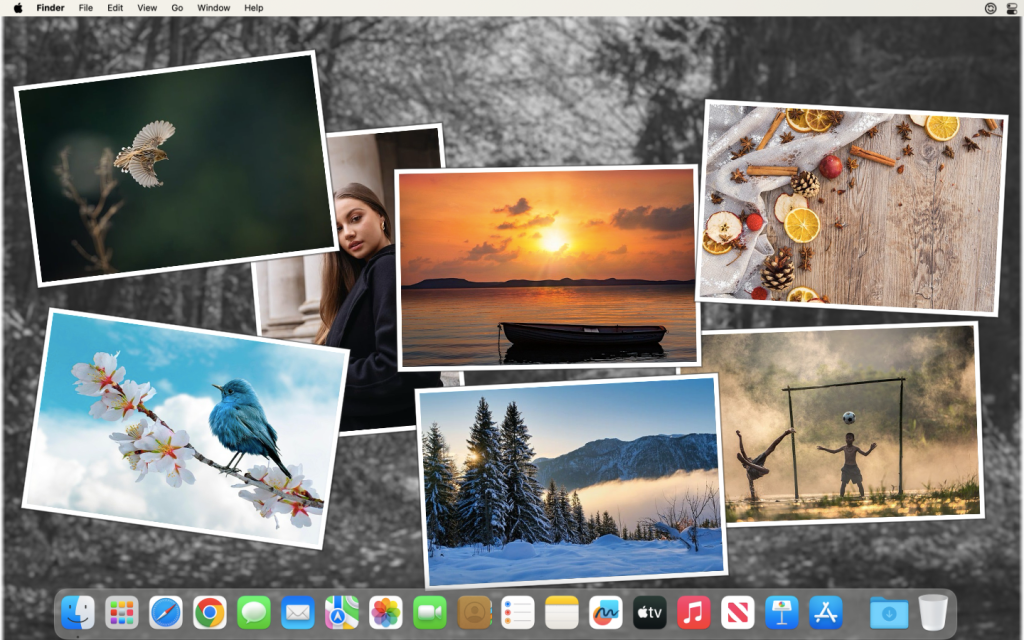
If you’re anything like me, having the ability to add your own sources of wallpapers is important, and this is exactly why I use John’s Background Switcher (JBS). First of all, it’s completely free to use for Windows and, secondly, it’s available for Windows and macOS (the latter will cost you $8.99), meaning I can use it on both and have my own preferred sources.
You can add sources such as Flickr, SmugMug, Unsplash, Pixabay, Pinterest, Wallheaven, and many others, including syncing your Google Drive or Microsoft OneDrive (Personal) and pulling your personal pictures as wallpapers. If you’re more advanced, you can even setup your own Media RSS feeds, which I find really cool.
JBS also supports multi-monitor setups, you can adjust the time at which wallpapers will automatically change, and even use effects like sepia, grayscale, and desaturation.
A different way of setting up your wallpapers on Windows and Mac.
8. Dynamic Wallpaper Club
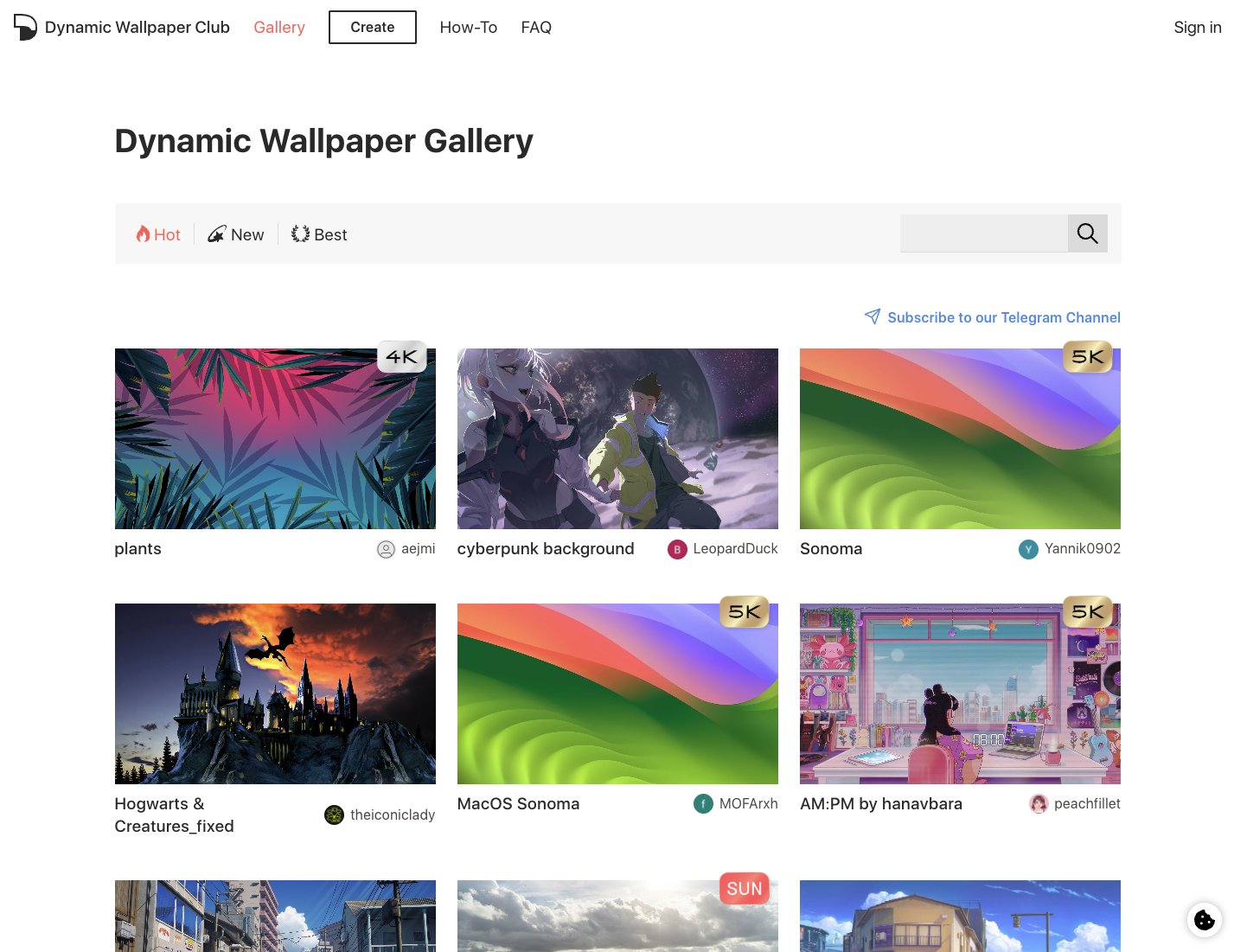
This is not exactly an application that will automatically change your wallpapers, but it’s a great tool to build and share your own dynamic wallpapers (or download those created and shared by others – check the Gallery here).
Dynamic Wallpapers is a feature first introduced by Apple back in 2018, and since then, many have been using them. Those wallpapers change automatically based on your system time and stay in position with the sun while it moves across the sky.
DynamicWallpaper.Club is basically a website that lets you browse between hundreds of dynamic wallpapers that you can easily download and use, and gives you access to its web-based tool that lets you create your own custom dynamic wallpapers.
To create a dynamic wallpaper, you need at least 4 high-quality images (e.g., night, dawn, noon, dusk) with the same size and aspect ratio. The website suggests using 16 images if possible.
Hands down, the number one stop for dynamic wallpapers.
When it comes to auto-changing wallpapers, there’s a pretty big list of apps that you can use and automate things. Unfortunately, as you’ve seen by now, not every app does what it says, with some saying they provide Live 4K wallpapers that are actually restricted in their premium versions, and others showing a completely dark screen, unable to load any image at all.
But hey, those are the best, right? Right. So anyway, what is your favourite app for auto-changing wallpapers and which is the worst that you’ve tried as of this moment? Let me know in the comments down below, and don’t forget to add this article to your bookmarks, as I’ll keep updating with new apps that I discover.
Editor’s Note: The article has been updated on December 28, 2025, to include the Wallper app that I found recently.


“So anyway..” 😂😂😂
“So anyway..” 😂😂😂
Bro has smushed the dreams of every developer
Bro has smushed the dreams of every developer