If you have a website or business email, such as “info@yourdomain.com”, you may want to connect it to third-party emailing apps such as Gmail, Outlook, Apple Mail, Thunderbird, Spark, or even Proton Mail, and stop using interfaces like Roundcube.
While the process is fairly easy, there are great changes that you have to troubleshoot. I know this pretty well based on the feedback I get from my clients. This is because most servers and web hosting companies use different settings when it comes to their mailing servers, but thankfully, there’s an easy way to find them (or try the most common ones).
The problem with Roundcube
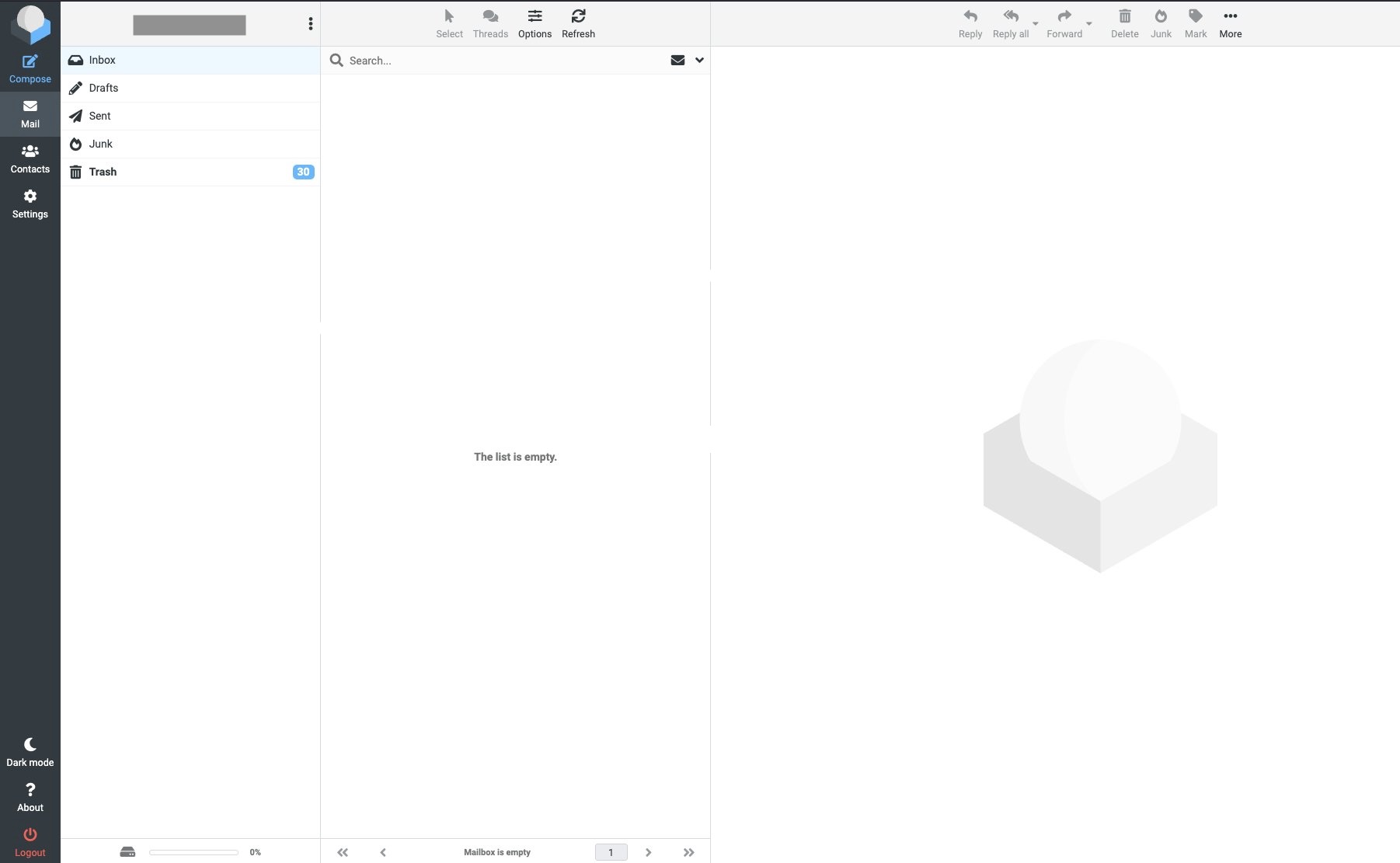
Most web hosting providers and servers are using Roundcube as their default interface for emails.
If I could possibly explain Roundcube to someone (bear in mind that I have over 17 years of experience in setting up dedicated servers), I’d say it’s like a basic cheap car: it will technically get you to your destination, provided you are not in a hurry, do not care about the comfort of the ride, and enjoy an interior design aesthetic that peaked during the World War II.
As someone who deploys high-availability cPanel and Plesk environments daily, I view Roundcube not as a feature, but as a necessary compromise we install simply because SquirrelMail finally died and Horde is too frightening to discuss in polite society.
The recent UI update was marketed as “modern.” In the context of Roundcube, “modern” apparently means “we added padding and made it responsive,” essentially bringing the interface up to the design standards of a Bootstrap template from 2014.
But hey, that’s just my personal opinion. If it works for you, it’s completely fine to keep using it and recommending it to whoever wants the same experience as you. But for me, it just… doesn’t work.
Some alternatives, on the other hand, like Hostinger, have built their own interfaces and even integrated AI-powered assistants.
While the first option [Roundcube] is basic and limited, the second one may trouble a lot of people when it comes to data collection concerns.
So what do you do?
Find and use a third-party email client that does the job and gives you all the features and options that you need.
Understanding the basics: IMAP, POP3, SMTP, etc.
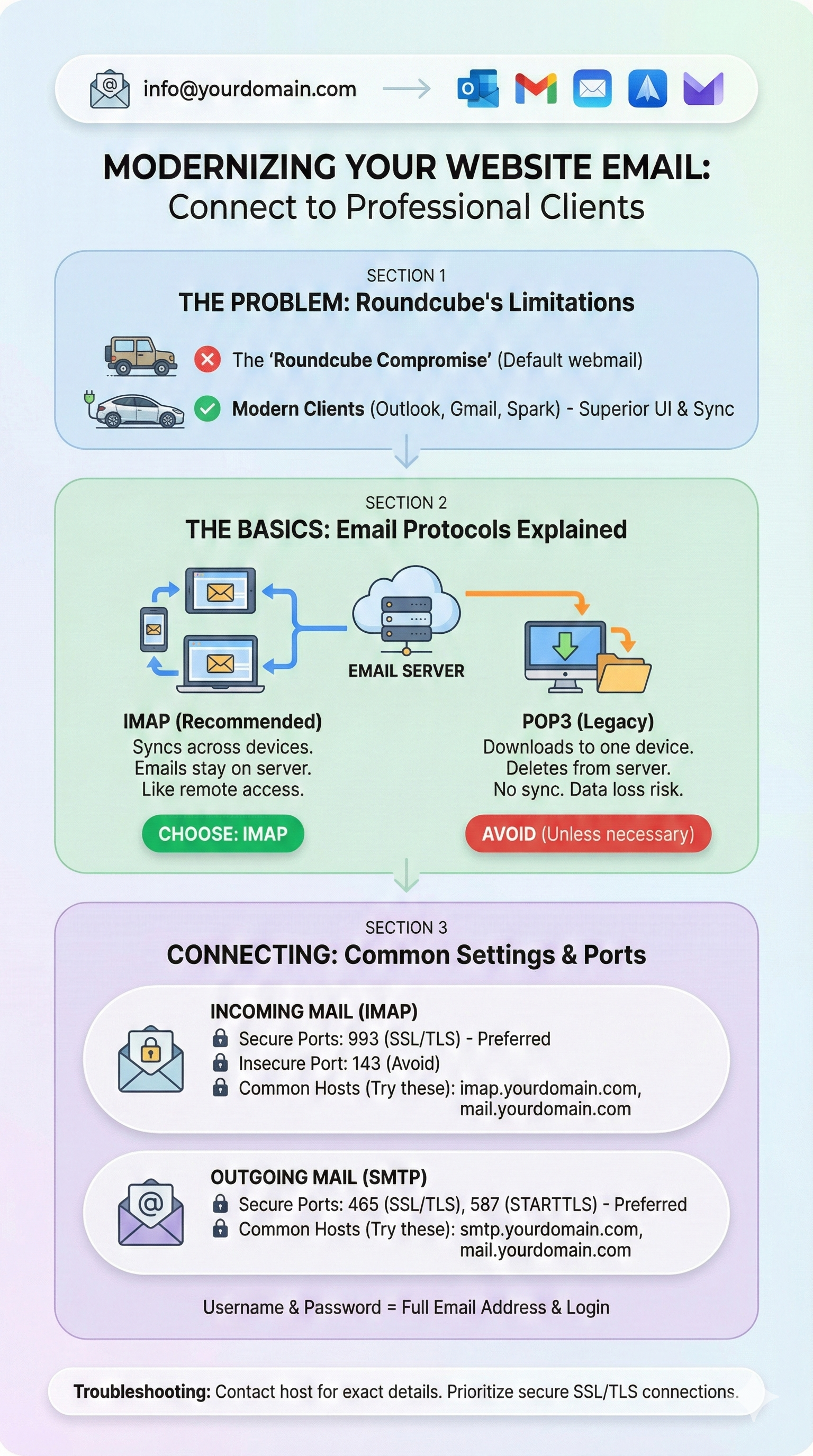
Sometimes, if a web hosting provider has done a fine job, you’ll be able to connect your website’s or business’s email just by using your login details on Gmail, Outlook, Spark, etc. But typically, you’ll have to enter some things manually.
Every web hosting provider gives you a list of the protocols (IMAP, POP3, and SMTP), hosts, ports, and encryption options. If you can’t find them, that’s fine. Try one of the following common settings and see which one works for you.
Alternatively, just contact your hosting provider and ask for the information, or use one of the following common settings that I have provided below.
IMAP or POP3?
Choose IMAP if you want everything to be synchronized automatically. This is the recommended way for most sites. This is like using Google Docs or a remote desktop. The email lives on the server. When you read it on your phone, you are just looking at a reflection of the server. If you delete it on your phone, it burns on the server too.
The POP3 protocol, on the other hand, is a whole other discussion, one where if something happens accidentally, your emails are burned. Gone. Nada. But I guess you can use POP3 if you’re paranoid about privacy or you have a tiny server storage quota and you’re still stuck at 2004 (I’m not judging).
Choose: IMAP
Common Ports
Usually, you want things to be as secure as possible, and the simplest way to do that is by using a secure and encrypted way to connect to your email account.
Whenever you want to connect your website’s email to a third-party email client, you’ll have two options:
- Incoming server (IMAP)
- Host (try any of the following):
- IMAP:
- imap.yourdomain.com
- mail.yourdomain.com
- webmail.yourdomain.com
- yourdomain.com
- SMTP:
- smtp.yourdomain.com
- mail.yourdomain.com
- webmail.yourdomain.com
- yourdomain.com
- IMAP:
- Ports (prefer the secure ones):
- IMAP:
110(Insecure),995(Secure/SSL). - SMTP:
465(Secure/SSL),587(STARTTLS).
- IMAP:
- Host (try any of the following):
The username and password for IMAP and SMTP are the exact same ones that you use to log in to your email account.
Great examples of hosting providers
Being almost two decades in this space, one of the companies that always impresses me with how fast they evolve and improve every single thing that they have is, hands down, Hostinger.
Not only do they offer one of the best and most detailed blogs with tips, tricks, explanations, troubleshooting, and frequently asked questions, but they also offer hundreds of guides inside and outside the platform’s hPanel interface.
This is not a promotion (although the link is affiliate 😅), but rather a personal recommendation.
Here’s an example of how Hostinger helps you quickly connect your email to third-party email clients, quickly and painlessly:
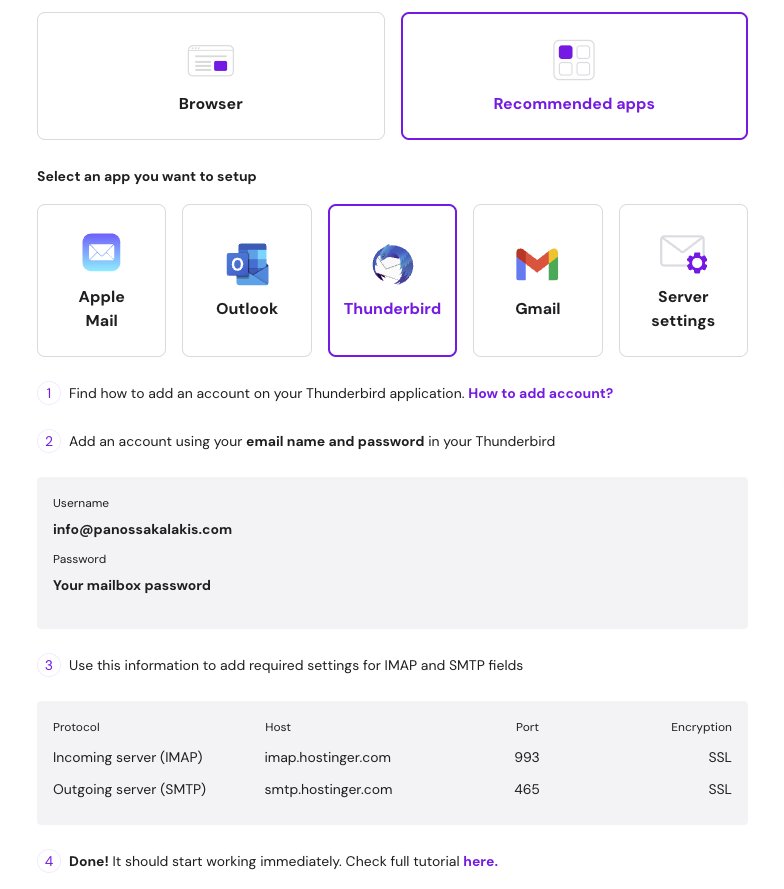
As you can see, a proper web hosting provider always uses SSL encryption, and they provide only secure ports for their clients.
Frequently Asked Questions
Last but not least, if you get an error, it usually is one of the following ones (if not, just let me know in the comments, I usually reply pretty fast), many of which you can troubleshoot quickly:
Typically, the cause is that the IMAP service on the server is down or crashed, your IP Address got banned (most common for my clients, check the server’s firewall like Fail2Ban), or there are permission issues on the mail folder. Try to login using a VPN application. If you can access the page and login, it means the server has blocked your IP address.
In short, it means that while you can read emails (meaning that the IMAP is working), you cannot send them because SMTP is rejecting you. Typically, you enter the wrong information in your setup, so ensure that you’re using your full email address and not just your username.
In translation: The server spam filter hates you. The cause behind this is usually that your content looks like spam, or your IP address is blacklisted. Check if your server IP is on a blacklist (Spamhaus, Barracuda). Ensure your SPF and DKIM records are valid.
If your mailbox is full (100%), start by deleting all the unnecessary emails that you don’t need, especially those that you’ve deleted and those in your ‘Spam’ folder. If you have a lot of emails with big files, like PDFs or pictures, deleting them will give you even more free space.
This is because your browser session has desynchronized with the server. That usually happens because you left the tab open for too long. In other situations, it may be caused by your AdBlock extension, as it tends to block many cookies. Refresh the page (F5). If that fails, clear your browser cookies for the specific domain.
I hope that helps!